GCR POS — Services Mode (Appointments)
Operating guide for appointment-based service businesses (salons, barber shops, spas): agenda, check-in, walk-ins, appointment checkout and commissions.
Administrative features live in the Back Office & Settings manual. Appointments can also originate from the online storefront (Bookings) and land in the same agenda.
1. Logging in
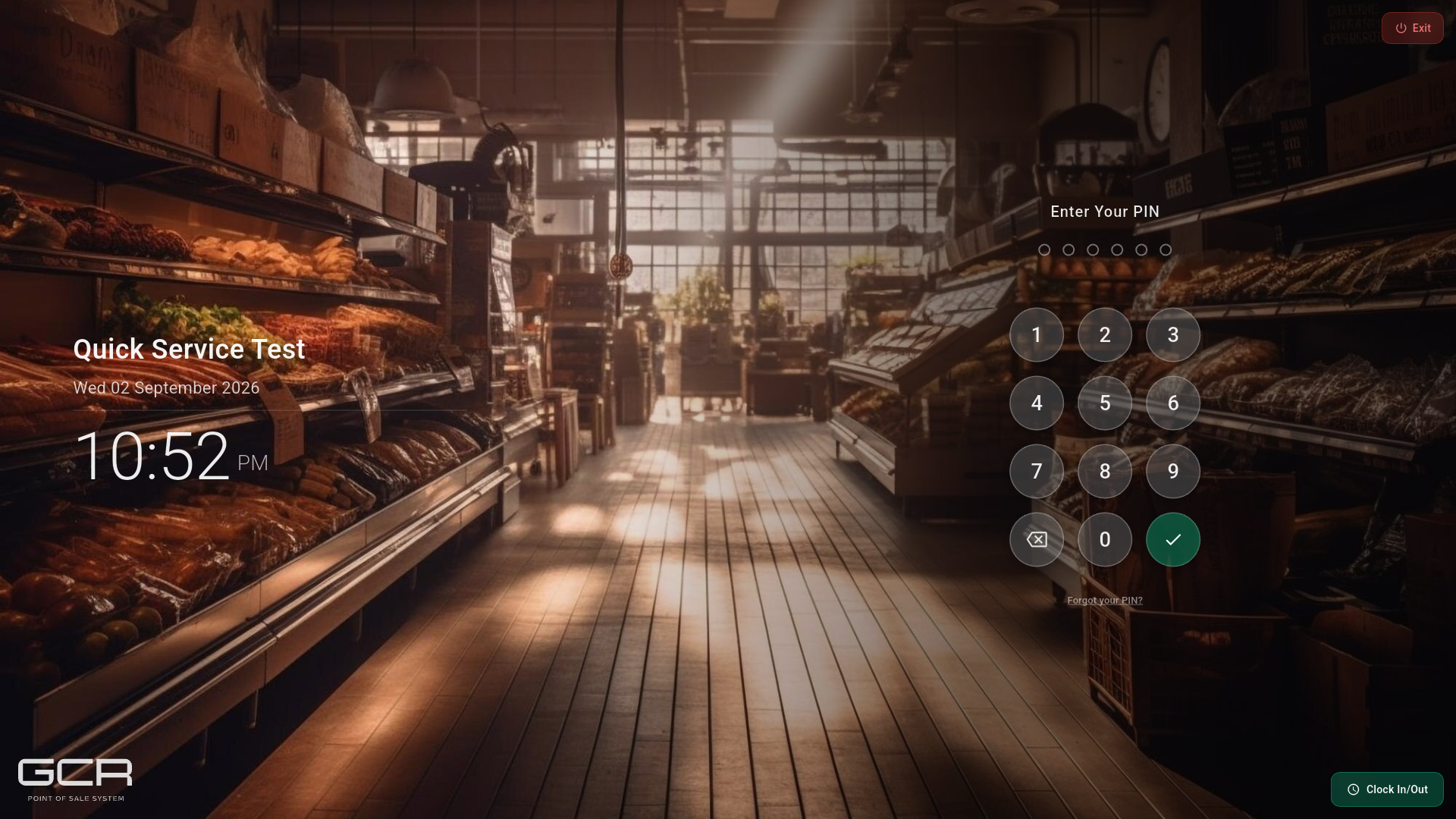
Type your PIN and confirm (same as the other modes).
2. The Services home
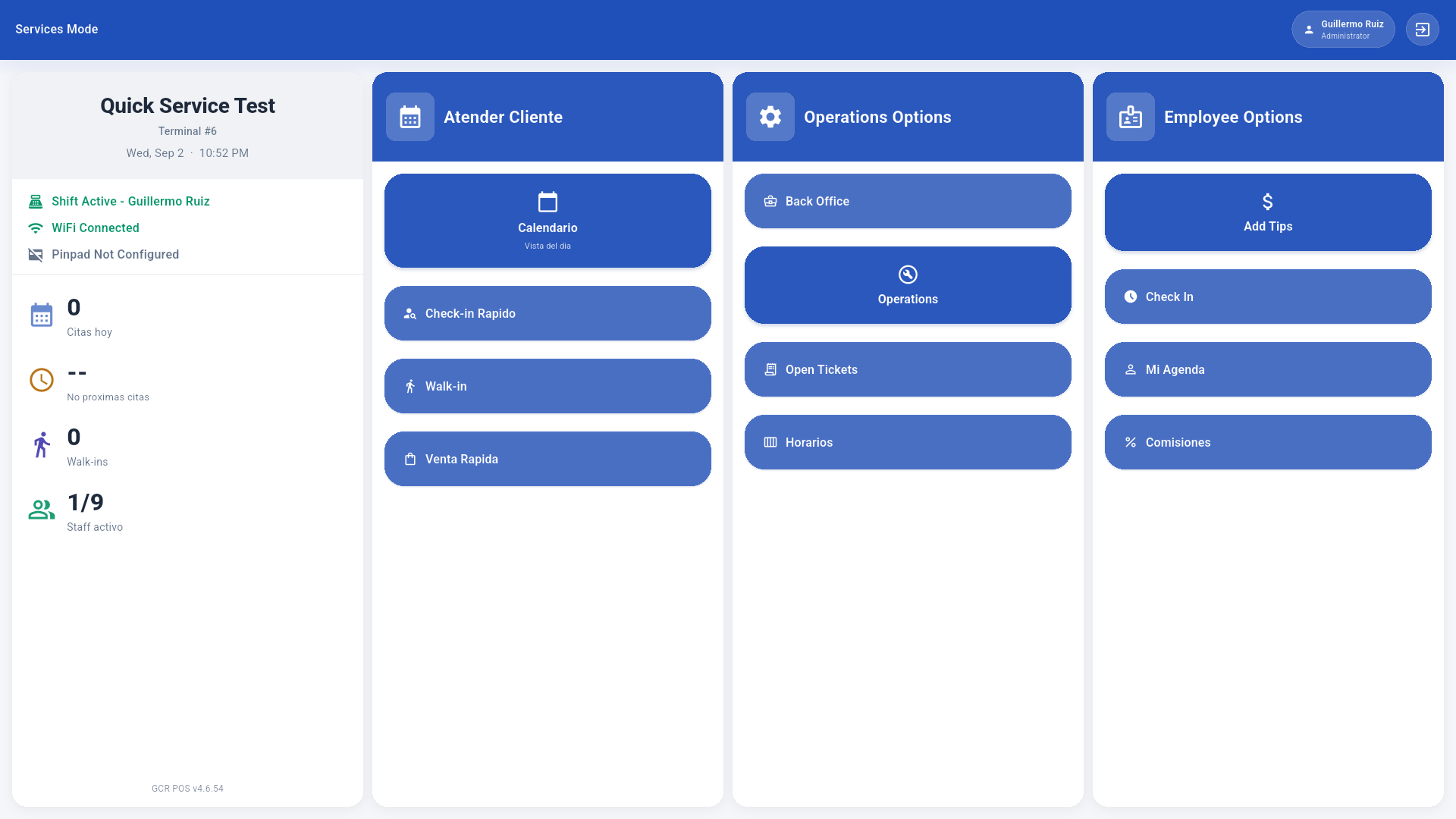
- Atender Cliente (Serve customer): Calendario (day view), Check-in Rápido (quick check-in), Walk-in (customer without an appointment) and Venta Rápida (direct quick sale).
- Operations Options: Back Office, Operations (register), Open Tickets (open checks) and Horarios (schedules).
- Employee Options: Add Tips, Check In (time clock), Mi Agenda (the employee's own appointments) and Comisiones (commissions).
- Left panel: today's appointments, next appointment, walk-ins, active staff, and the register shift status.
3. The agenda (Citas)
3.1 Agenda view
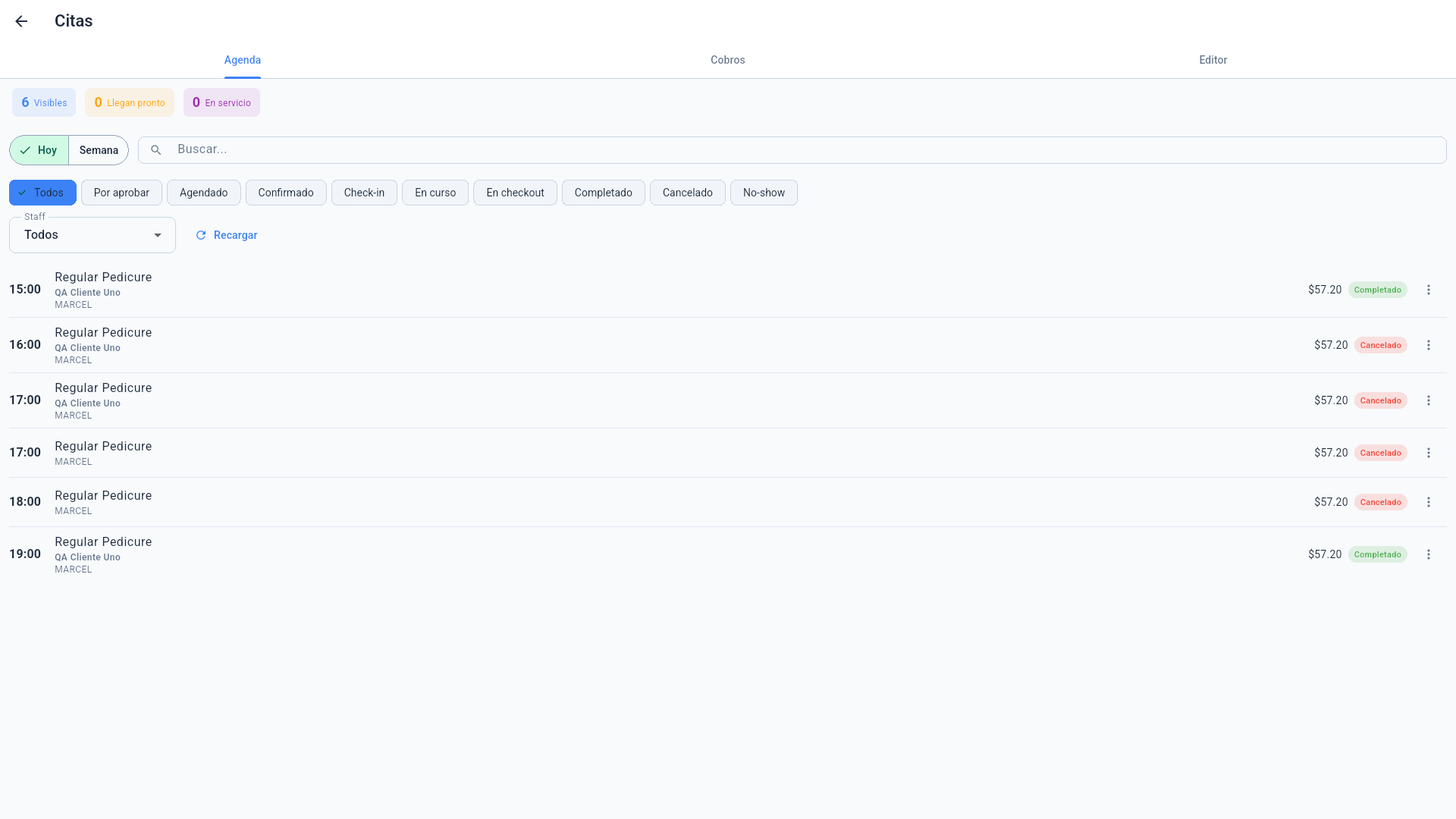
- Tabs Agenda / Cobros / Editor.
- Filters by day/week, text, status (Pending approval, Scheduled, Confirmed, Check-in, In progress, In checkout, Completed, Cancelled, No-show) and staff.
- Each appointment shows time, service, customer, staff, price and status. The row menu ⋮ advances the status (confirm, check-in, start, send to checkout, complete, cancel).
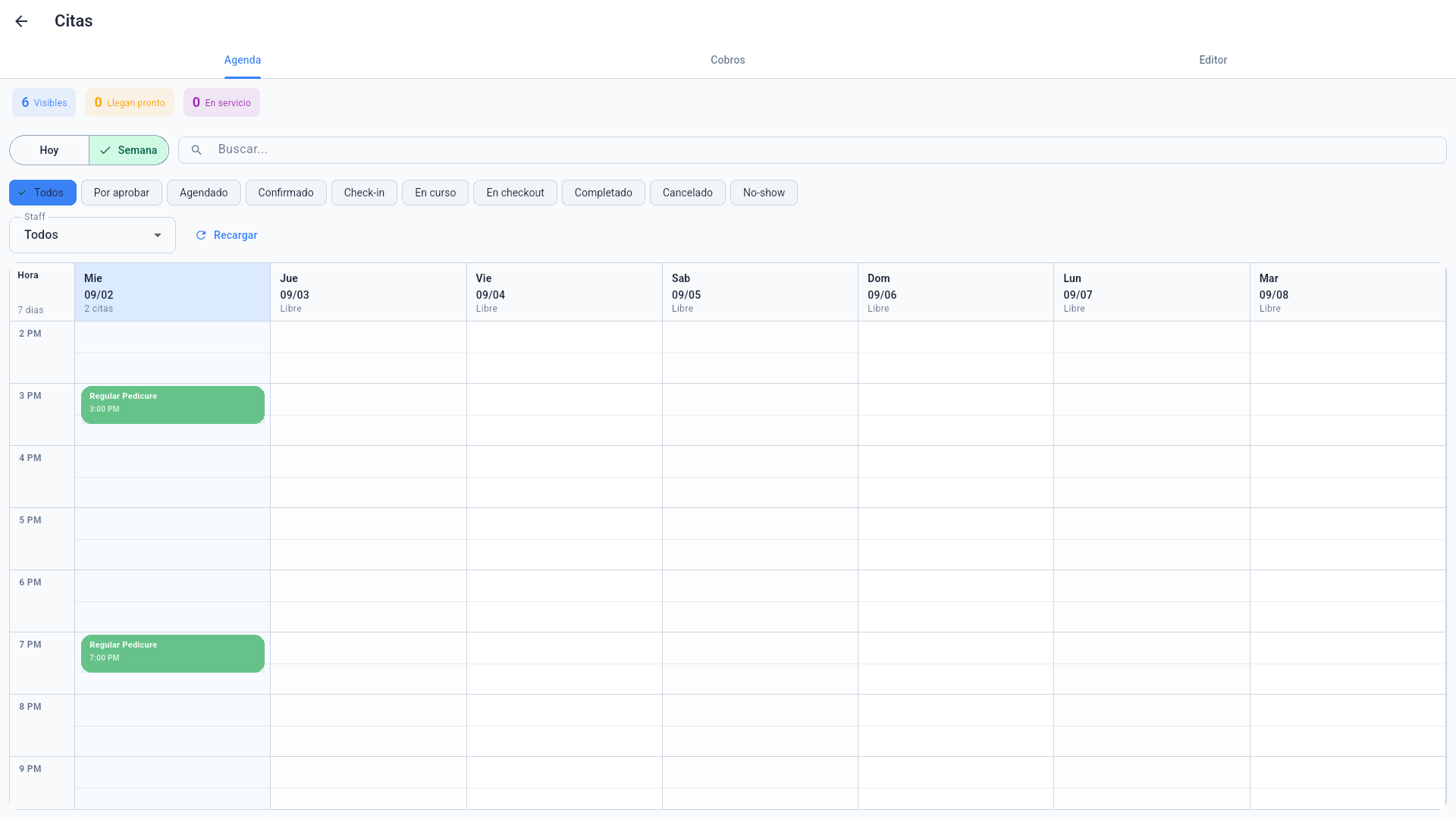
The Week view shows the full calendar:
3.2 Creating or editing an appointment (Editor)
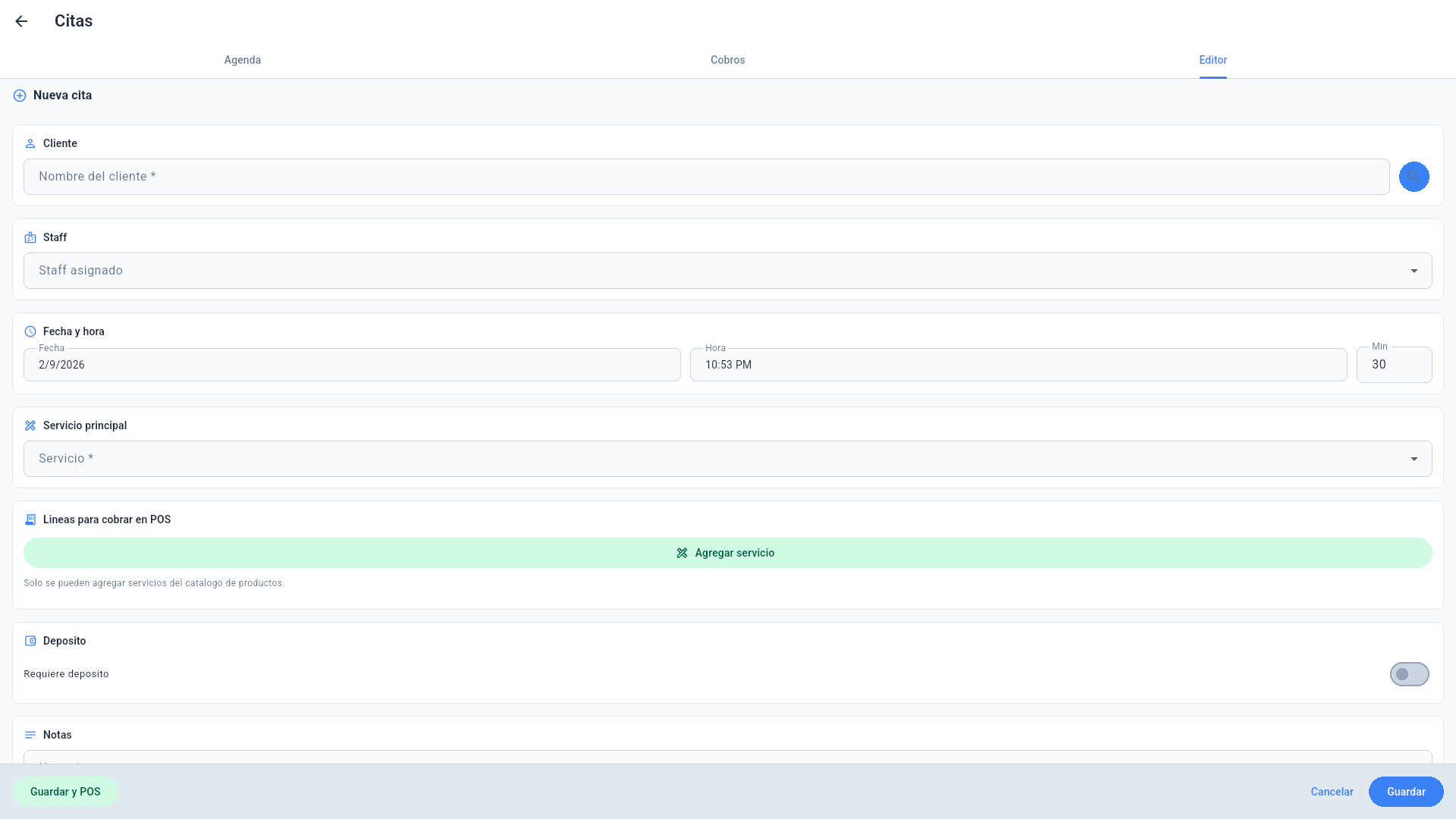
New appointment: customer (searchable), assigned staff, date/time and duration, main service, extra POS charge lines, deposit (when a prepayment is required) and notes. Guardar y POS saves and opens the checkout immediately; Guardar just schedules it.
3.3 Appointment payments (Cobros)
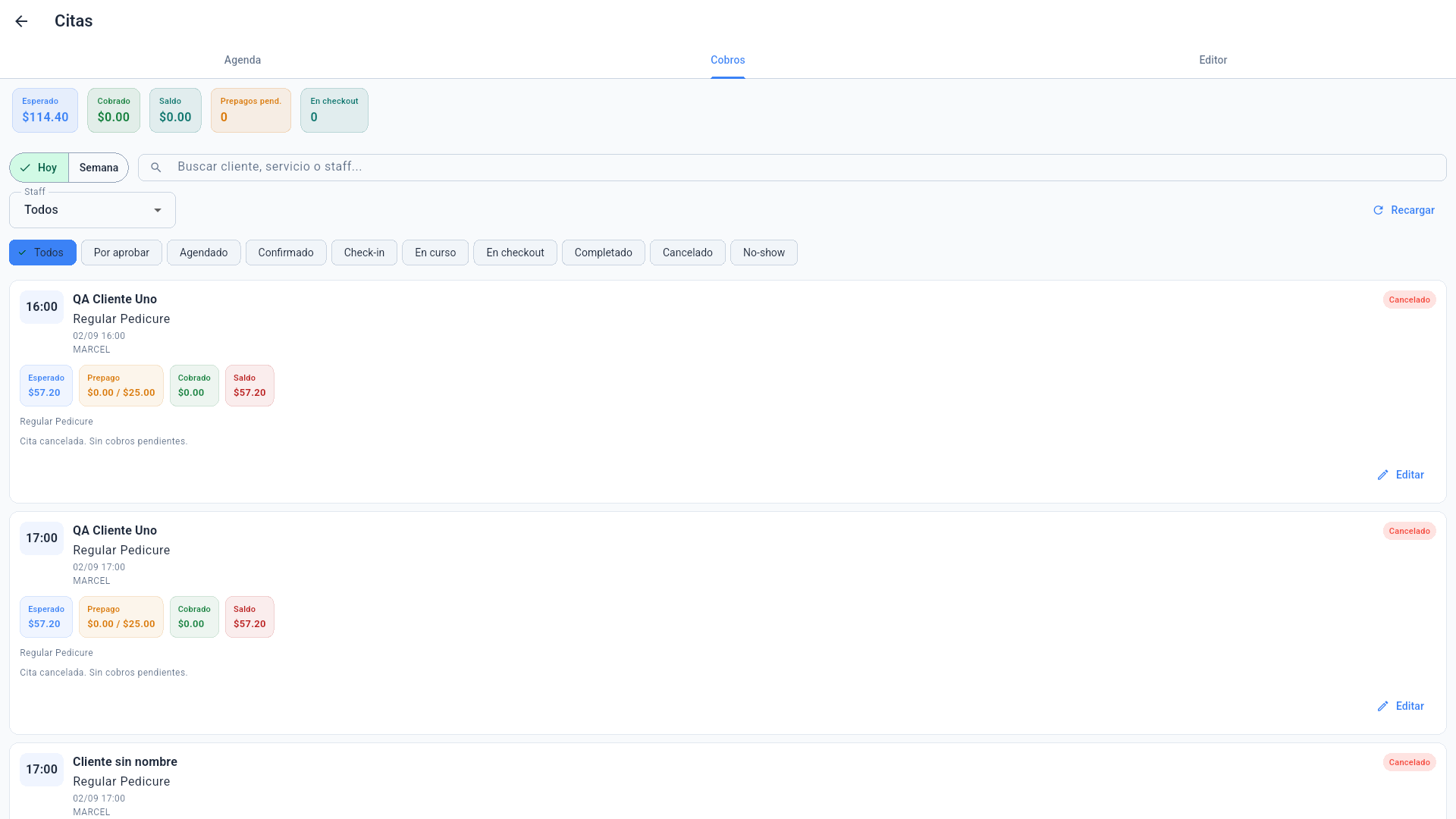
The Cobros tab summarizes the day's money: Expected, Collected, Balance, Pending prepayments and In checkout, and per appointment shows expected / prepaid / collected / balance. Use it to find appointments with an outstanding balance or applied deposits.
4. Typical daily flow
- Customer arrives → Quick check-in (or check-in from the agenda).
- Staff serves (the appointment moves to In progress).
- When done → In checkout: the appointment builds its ticket with the services and goes to the standard POS payment screen (tips included).
- Paid → Completed. If the customer never showed → No-show.
- Walk-in creates a visit without a prior appointment (pick service and staff).
- Venta Rápida opens the direct sale screen (retail items).
- Open Tickets lists open, unpaid checks.
5. Commissions and personal agenda
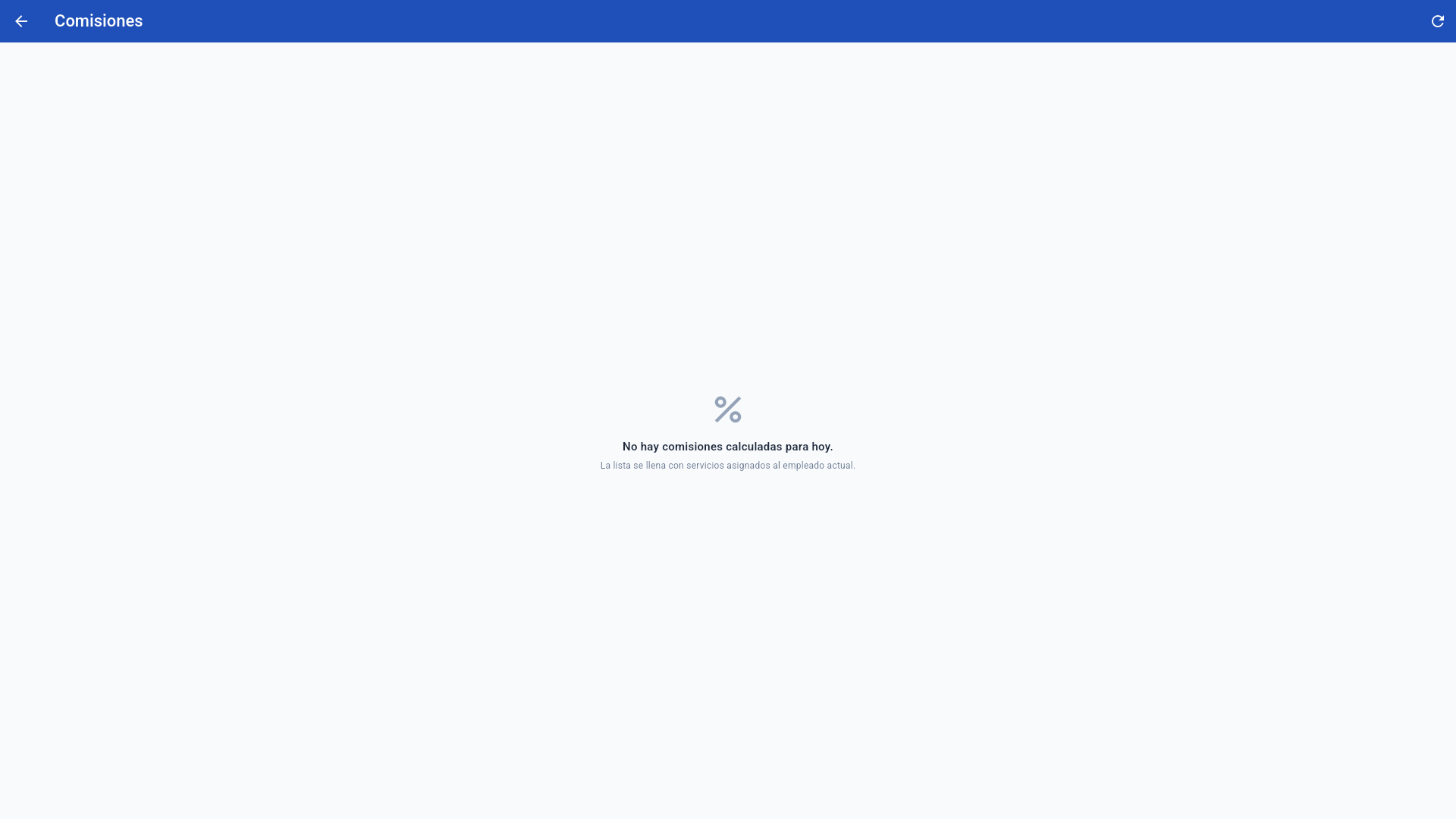
- Comisiones shows today's commissions for the current employee, computed from the services assigned to them.
- Mi Agenda filters the calendar to the signed-in employee.
- Horarios manages staff schedules.
6. Deposits and online bookings
- When an appointment requires a deposit, the prepaid amount (for example from the online booking page) appears as Prepago and is subtracted from the balance at POS checkout.
- Online bookings arrive as Pending approval and are confirmed from the agenda.
7. Register, reports and settings
Cash shifts, X/Z, Operations, Back Office (customers, products, users, attendance) and Settings work the same as in every other mode — see the Back Office & Settings manual.