GCR POS — B2B Invoicing & Accounts Receivable
How to sell on credit from the register, raise invoices from the portal, get paid, and always know who owes you what.
This manual spans three places: the POS, the Merchant Portal, and the page your customer sees. For closings and general reports see Back Office; for the rest of the portal see Merchant Portal.
Ground rule: invoicing lives in the cloud. A store in Single Terminal mode, or with no cloud configured, can still sell on credit — the sale closes and shows on the Z — but no invoice is created. Raising, listing and collecting invoices all need a connection.
Minimum version: v4.6.64. Earlier builds do not carry the complete module. The version is printed at the bottom of the POS home screen.
Invoicing is a paid add-on ($25/month per store). GCR enables it store by store from the admin panel. Without it: the Invoices section does not appear in the Merchant Portal, the Invoices card does not appear in the POS Back Office, and the On Account tender is not offered at payment. Ask your representative for it.
1. How it works
Four steps. The debt is born in one of two places and is settled in one of three ways:
   CREDIT SALE (register) ─┐
                           ├──►  INVOICE  ──►  Customer receives it  ──►  PAYMENT
   INVOICE (portal)       ─┘     (open balance)  (email / link)           │
                                                                          ├─ cash or check at the register
                                                                          ├─ card at the counter
                                                                          └─ card online (by the customer)
Glossary
| Term | What it means |
|---|---|
| On Account | POS tender that closes a sale without taking money: the customer owes it. |
| Draft | Invoice prepared but not issued: owes nothing, is not in your receivables, and its link does not work. |
| Issued | A real debt now. It has a balance and shows on the customer's statement. |
| Sent | Issued and emailed to the customer. |
| Partial | Has payments but still carries a balance. |
| Paid | Balance is zero. |
| Void | Cancelled. The link dies and the balance leaves your receivables. Irreversible. |
| Aging | Receivables report by age: how much you are owed and for how long. |
| Statement | A customer's full activity with a running balance. |
| Credit note | Reduces the balance without money coming in (discount, return, billing error). |
2. Before you start
-
Store must be in cloud mode. If the register says Single Terminal, invoicing will not work.
-
Enable the credit tender. Portal → Settings → Payments → turn on the On Account card. Without it the button does not exist at the register.
-
Who can do what in the portal:
Role See invoices Create, issue, collect, void Owner Yes Yes Manager Yes Yes Viewer Yes No (buttons are hidden)
Watch out at the register: taking an invoice payment (Receive Payment) requires no special permission. Any employee who can open Back Office → Invoices (the same View customers permission that opens Customers) can record one. If that is a problem, restrict that permission under Users.
3. Invoice settings
Portal → Settings → Invoices.
| Field | What it does |
|---|---|
| Invoice Prefix | Number prefix. Left empty it uses INV-. |
| Next Invoice Number | The next sequence number. Changing it affects future invoices only; it never renumbers issued ones. |
| Default Due Days | Default credit period. 30 = Net 30. Empty = Due on receipt. |
| Footer Text | Text at the bottom of every invoice: payment instructions, thank-you note, bank details. |
Which due date wins, in order:
- Whatever you type by hand when creating the invoice in the portal.
- Otherwise the customer's own terms (customer record).
- Otherwise the store's Default Due Days.
- Otherwise: Due on receipt.
As of v4.6.64 this also applies to invoices born at the register. Before that, only the portal honoured the store value, so the same store issued Net 30 from the back office and due-on-receipt from the counter.
4. Business (B2B) customers
Any customer can be invoiced, but the business fields make the document look right. They are edited the same way in the POS and the portal (Customers → edit):
| Field | What for |
|---|---|
| Company name | Legal name. This is what appears large in the invoice's Bill to. |
| Contact name | The person you deal with inside the company. |
| Default terms (days) | Credit period specific to this customer. |
| Credit limit | Informational only — the system does not block a sale that exceeds it. |
| Where the invoice and the receipt are sent. No email, no sending. |
Phone stops being mandatory once the customer has a company name. A customer without a company still needs one.
The customer code (CL-000001, CL-000002, …) is assigned automatically,
whether you create the customer at the register or in the portal.
5. Selling on credit at the POS
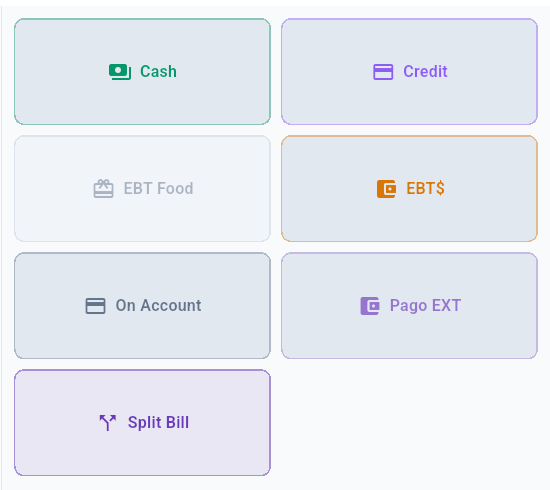
- Ring up the sale as usual.
- Attach the customer (Customer button in the top bar). Mandatory.
- Press PAY and choose On Account.
The sale closes with no money taken, and within a minute the invoice appears in the portal.
No customer, no credit. Charging On Account without a customer is refused: "On Account requires a customer — select one before charging to account". Attach the customer and try again.
Mixed payment (part now, part on credit)
In Split Bill you can take part in cash or card and leave the rest on credit. The invoice is born partial: what you collected already counts as paid and the balance is exactly what was left owing.
Dual-price stores (cash discount): if the cash portion got the adjustment, the invoice shows a "Cash price adjustment" line so that subtotal + tax − adjustment matches the total. If that line is missing and the figures do not add up, you are on a build older than v4.6.64.
What happens next
- The invoice number is assigned by the cloud, not the register: the cashier cannot read it out to the customer at the counter.
- If the register was offline, the sale closes anyway and the invoice is created on reconnect (it may take a while).
- Loyalty points are still earned on a credit sale.
Voiding or refunding a credit sale does NOT void its invoice. They are independent documents: void the invoice separately in the portal, or you will keep chasing a debt for a sale you already reversed.
6. Creating an invoice from the portal
Portal → Invoices → + New Invoice.
- Customer — search by name, company or phone.
- Add product (optional) — pick a catalogue product and it becomes a line at its price. You can also type free-text lines.
- Line items — description, quantity, rate and tax.
- Payment terms — pre-filled from the store default.
- Notes (optional) — printed at the foot of the invoice.
- Finish with Create draft or Create & send.
Line tax is NOT calculated for you. The tax column starts at 0 even
when the product has a rate configured — type it in. Left at zero, the
invoice goes out with no tax.
7. Issuing and sending
A draft owes nothing. Someone has to issue it. Select the invoice and use the panel on the right:
| Button | What it does |
|---|---|
| Issue without sending | Issues it with no email. Only appears while it is a draft. Use it when you hand the invoice over on paper, in person or over chat. |
| Send… | Asks for the email and sends it. Ends up Sent. |
| Copy link / Open | Copy/open the customer's public link. |
| Apply credit… | Credit note (see §10). |
| Void | Cancels it. Irreversible. |
The button nobody finds is Issue without sending: it exists only while the invoice is a draft and disappears the moment it is issued.
"It says Sent but the customer got nothing." Status and email are independent: if delivery fails the invoice is still marked sent. The clue is in the toast: "Invoice sent" = the email went out; "Invoice marked as sent" = the status changed but delivery failed. Then use Copy link and send it yourself.
8. What the customer sees
Your customer opens a link like shop.gcrpos.com/invoice/<code>. No login —
the link itself is the key.
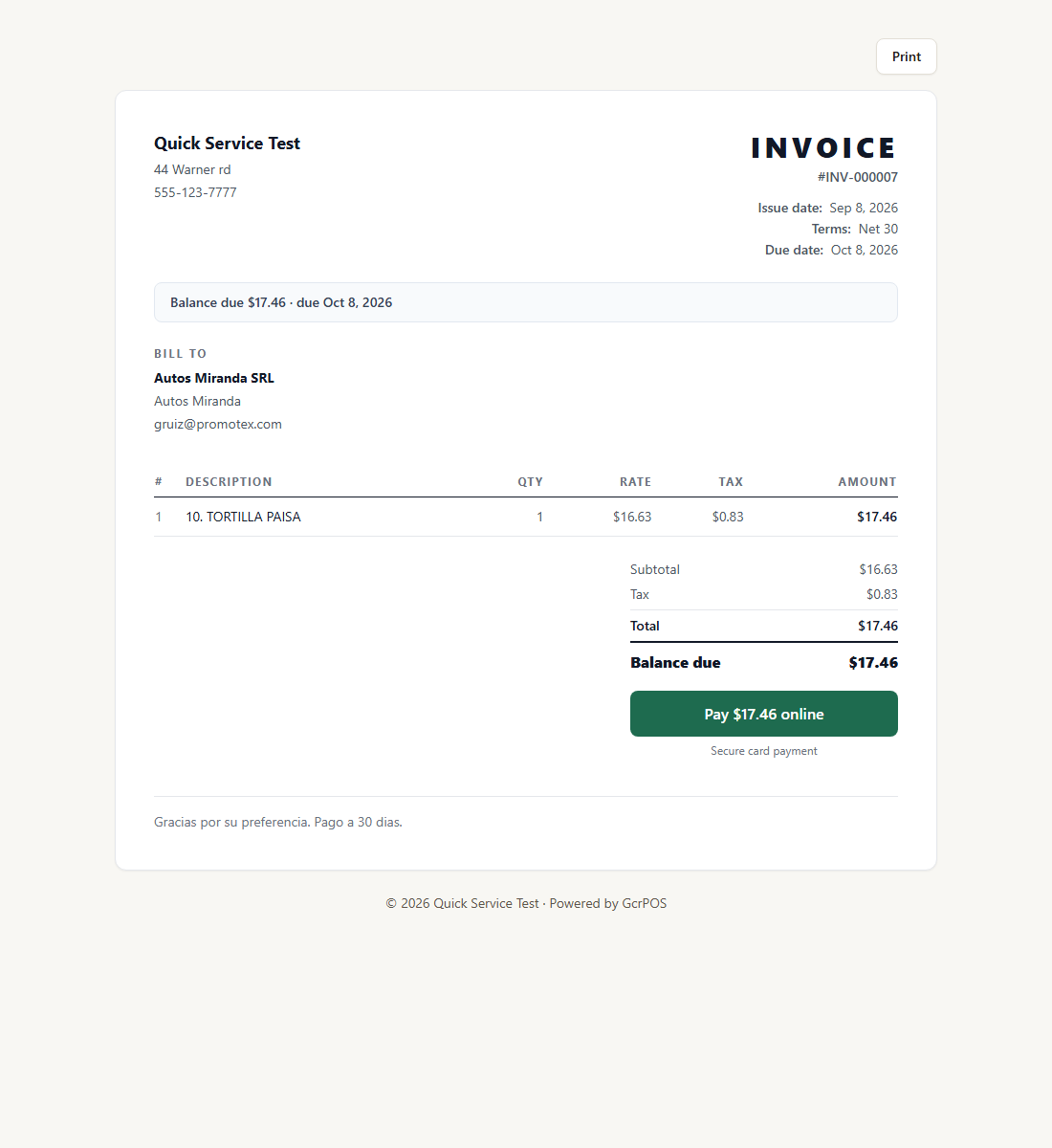
It carries your business name, address and phone, the invoice number, issue and due dates, the bill-to details, the lines with quantities and prices, the totals, your configured footer, and a Print button.
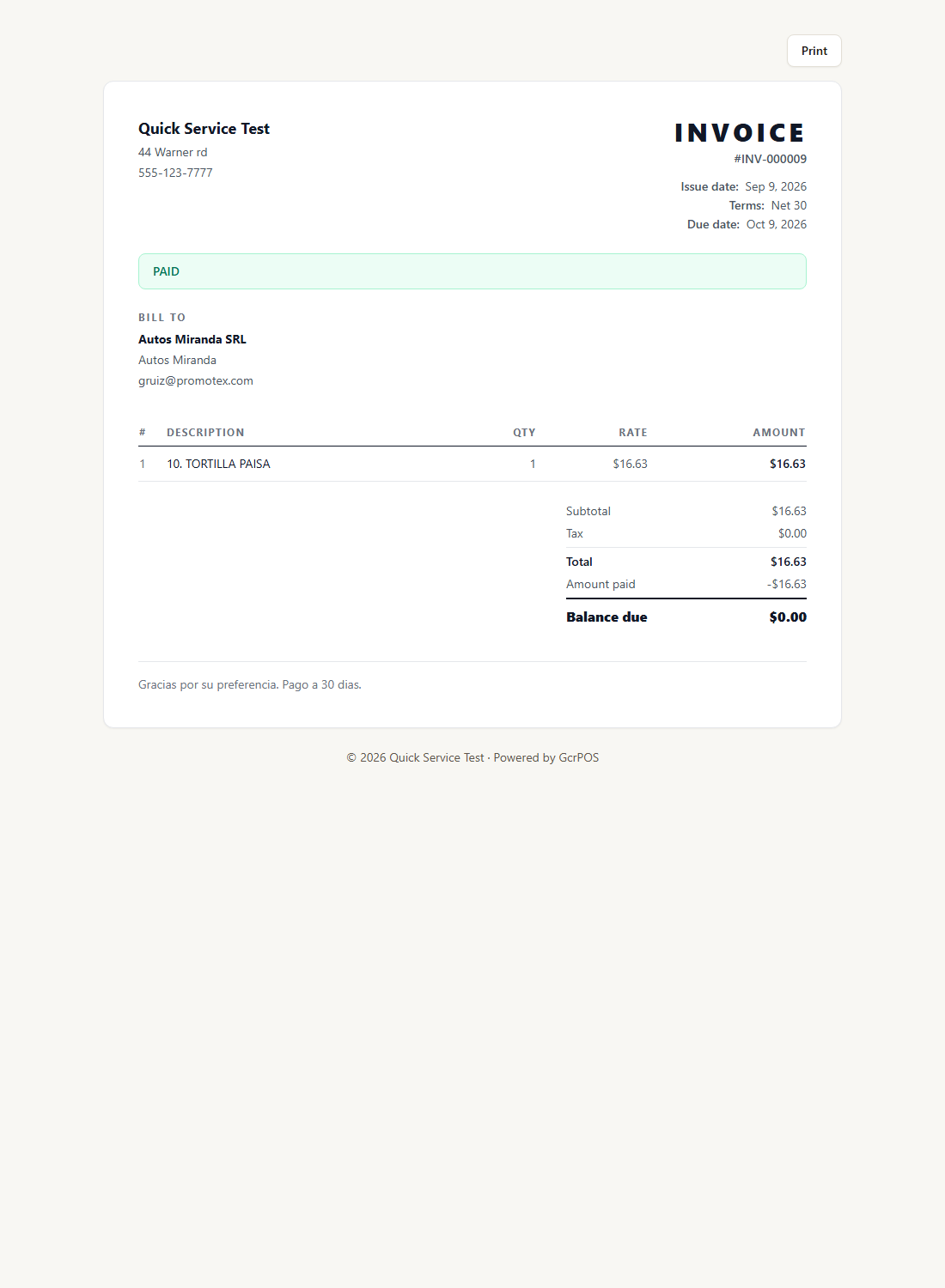
Once settled it shows the PAID banner and the pay button disappears.
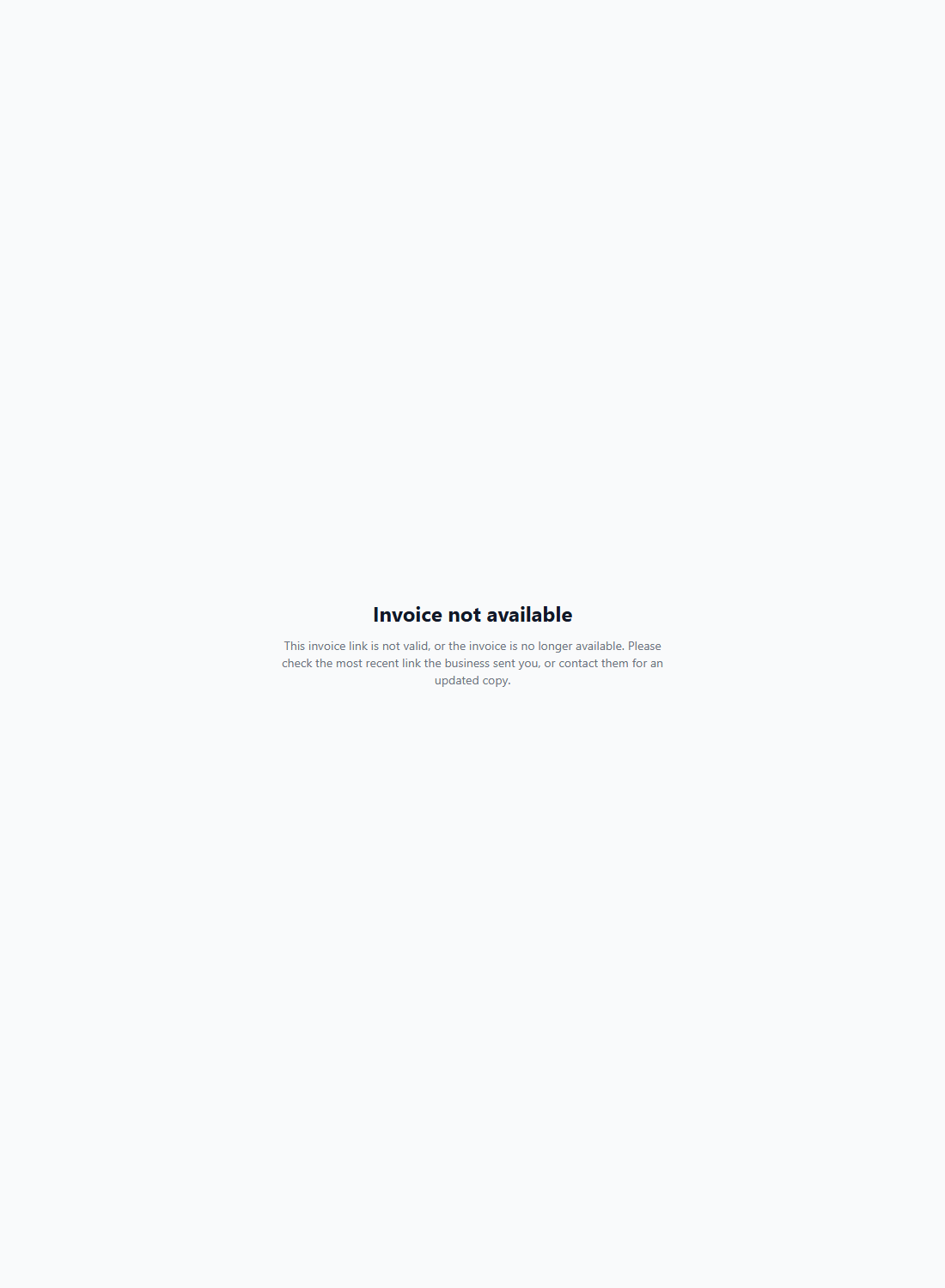
A link may not work for three reasons: the invoice is still a draft, it was voided, or the link was copied wrong. In all three the customer sees "Invoice not available". It is not a fault in your store.
9. Getting paid
9.1 At the register (Receive Payment)
Back Office → Invoices (since v4.6.65; before that it hung off the customer row menu in Customers). The screen lists the store's invoices — Open by default, All to include paid and void ones — searchable by invoice number, customer or company. Tap a row to see its items, totals, balance and payment history; from there:
- Receive Payment — collect the invoice (below).
- Add products — add lines from the catalog to an open invoice (9.2).
- View / print invoice — opens the printable invoice page.
- Print receipt (printer icon on each payment) — reprints the payment receipt.
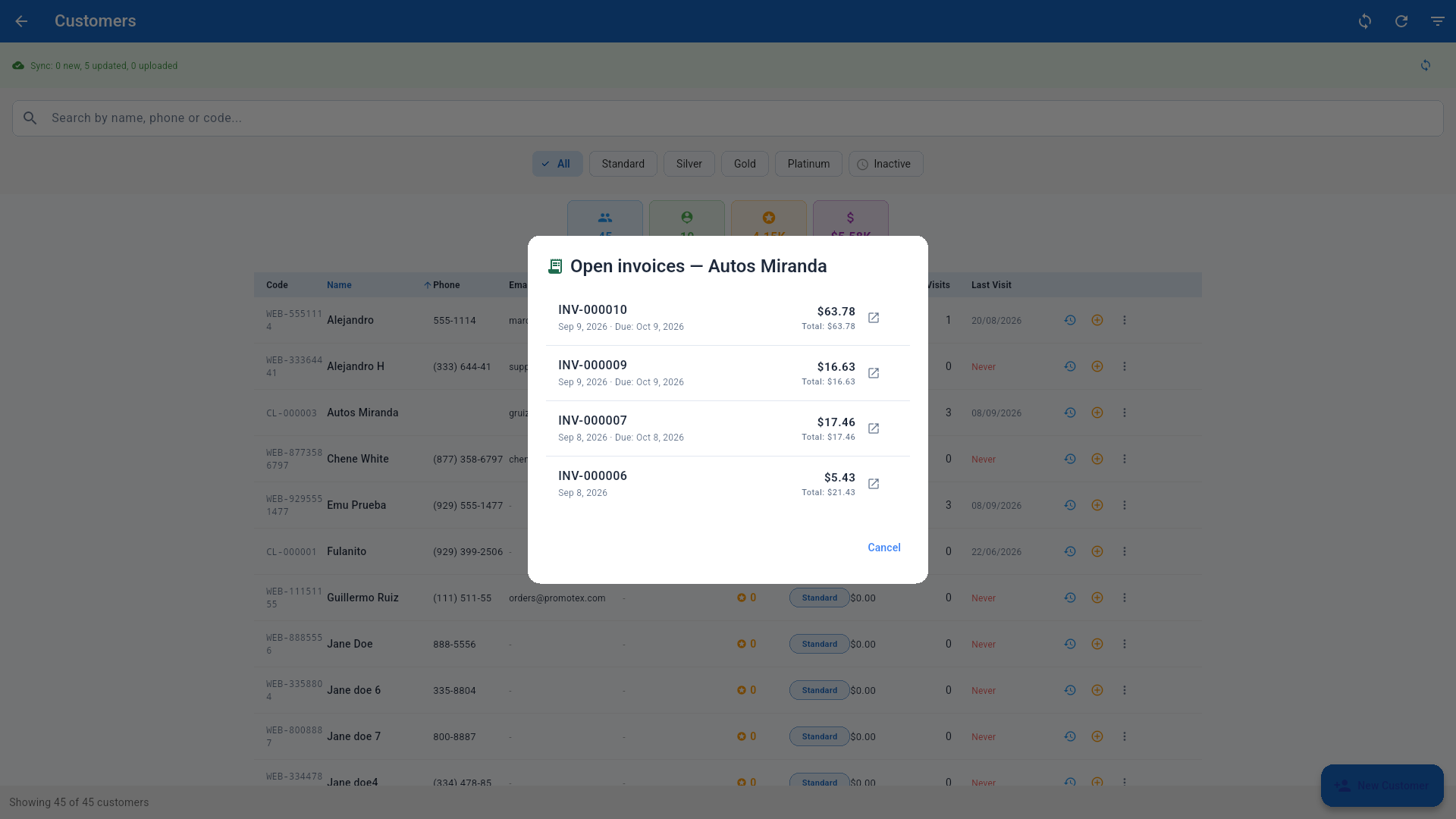
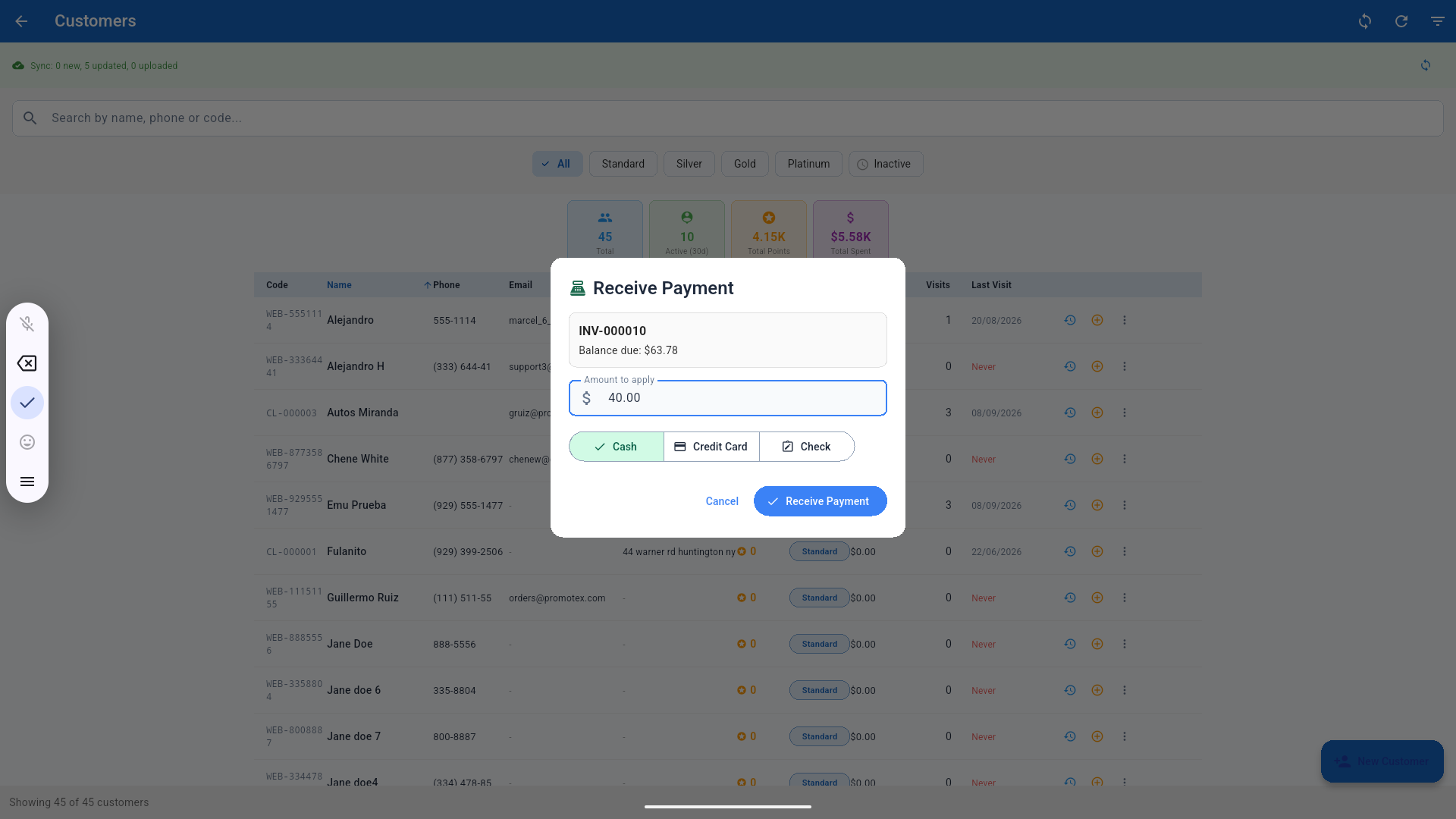
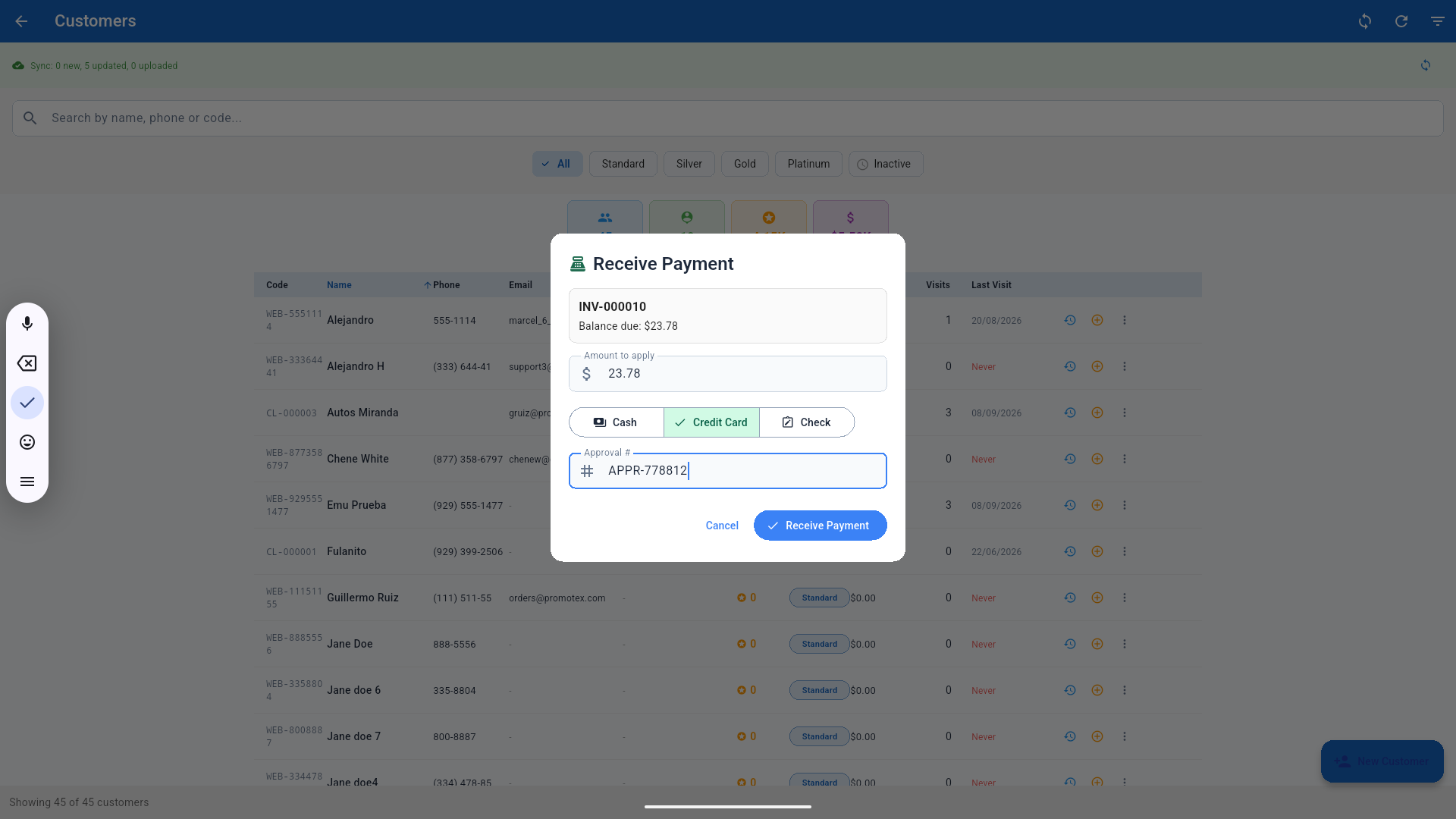
The amount is pre-filled with the full balance; change it for a part payment and tap Collect. The POS then opens its regular payment screen — the same one a sale or an appointment checkout uses — with the store's enabled tenders (On Account and EBT are not offered against an invoice). Splits work like on a sale; the screen returns once the amount is fully covered. The collection is a sale: the POS books a one-line sale "Invoice payment INV-…" with the tenders used, so it shows on the X/Z and in Transactions like any other check, and the invoice balance drops by the same amount.
| Tender | Effect on the balance | Effect on the drawer |
|---|---|---|
| Cash | Reduces it | Goes into the drawer as cash of that sale (expected cash on the Z); the drawer opens |
| Credit / Debit / Gift Card | Reduces it | Does not touch the drawer. The card is charged on the payment terminal (Dejavoo / PAX / Valor) exactly like a sale; the approval code, card brand and last four are stored with the payment |
| Custom tenders (Check, Zelle, …) | Reduces it | Does not touch the drawer. Whatever the store enabled under Settings → Payments, with its reference |
Every payment prints an invoice payment receipt (invoice number, customer, previous balance, payment, new balance, tender and card/auth data) on the terminal's receipt printer. If nothing prints the POS warns in orange; the payment is still recorded, and the receipt can be reprinted any time from the invoice's payment history.
9.2 Adding products to an open invoice at the register
Back Office → Invoices → open invoice → Add products. Search the catalog by name, barcode or SKU (a scanned barcode adds the product straight away), adjust quantities, and confirm. The lines are appended to the invoice — the original lines never change — with the product's card price and the store's tax rules; the balance grows by the new total, the customer's ledger records the adjustment, and tracked products are deducted from inventory.
These lines are not a sale either: like the original On Account sale they live in the invoice until the invoice is collected, and only the collection reaches the Z.
Collecting needs an open shift. A collection is a sale, so the POS asks for an open shift before it sends anything to the terminal: "There is no open shift on this terminal. Open one to take payments."
Type more than the balance and the error appears on the field itself: "Enter an amount between $0.01 and …".
9.3 Online (paid by the customer)
The customer presses "Pay $X online" on their invoice and is taken to the payment page. When they finish, the invoice marks itself paid, they get a receipt by email, and the balance leaves your receivables.
The button only appears if your store has online payments configured (a gateway TPN). Without it the customer can only print the invoice and pay you another way.
Confirmation arrives as a callback from the gateway. If the customer says they paid and the invoice is still open, reload the invoice page after a minute. If it has not changed, check your processor's portal before charging them again.
9.4 Part payments
You can collect in instalments and mix tenders. A real example from testing, on a $63.78 invoice: $40.00 in cash and $23.78 by card → invoice paid, and only the $40 went into the drawer.
10. Credits, voiding and corrections
Apply credit… reduces the balance without money coming in: a later discount, a return, a billing mistake. It asks for an amount and a reason, and lands on the statement as a credit note.
A credit note is not a payment. If the customer actually paid you, use Receive Payment at the register. Using Apply credit drops the balance just the same, but your books will say you forgave the debt rather than received money.
Void cancels the invoice: the customer's link dies and the balance leaves your receivables. It cannot be undone, and a paid invoice cannot be voided.
An issued invoice cannot be edited. There is no way to correct amounts, lines or customer. If you got it wrong: void it and raise a new one.
11. Tracking what you are owed
Invoice list
Portal → Invoices. Four indicators at the top:
- Open Balance — total owed to you.
- Overdue — how many invoices are past due, and for how much.
- Paid (Last 30 Days) — what you collected in the last month.
- Drafts — unissued drafts.
Invoices are grouped Overdue → Open → Drafts → Closed, and you can filter by status or search by number, customer or company.
The four indicators are computed over all invoices, not the filtered view. The list loads the 200 most recent.
Aging
Aging tab: one row per customer with the debt split into Current, 1-30, 31-60, 61-90 and 90+ days. This is the report that tells you who to chase first.
Statement
Statement button on the customer's row: opening balance, every movement (invoice, payments, credits, voids) with a running balance, and the closing balance. Can be printed or emailed.
Where to see how an invoice was paid: the invoice panel shows only the total paid. The breakdown (payment, credit, paid at the time of sale) is only in the Statement.
12. Invoicing and your books
This chapter is the one that prevents accounting arguments.
Issuing an invoice is not a sale
An On Account checkout produces a document, not money. Since v4.6.65 it is stored as an invoiced sale that no register report counts: it is not on the X or the Z, not in Transactions, not in expected cash, not in card totals. It lives in Back Office → Invoices (and in the portal) until it is collected. Inventory does leave the store at that moment, so stock is correct.
"I sold $500 On Account and the Z doesn't show it." Correct. Nothing was collected. It shows up the day the customer pays.
Builds before v4.6.65 reported the On Account sale on its own On Account line of the Z; older days keep that line.
The collection is the sale
When the customer pays at the register, the POS books a regular sale "Invoice payment INV-…" for the amount collected, with the tenders used. That is what reaches the books:
| Payment | Invoice balance | On the X / Z | Where the money is |
|---|---|---|---|
| Cash at the register | Down | Cash of that sale, in expected cash | In your drawer |
| Card on the terminal | Down | Credit / Debit of that sale — matches the pinpad batch | In the pinpad batch |
| Custom tender (Check, Zelle…) | Down | Its own line, like on any sale | On the check / in the app |
| Online | Down | Not on the Z (no register involved) | In the processor's deposit |
The same legs are written to the invoice ledger, so the balance, aging and statements move by the same amount.
Tax
Reported when collected (cash basis). Each collection carries the invoice's tax pro-rata: an invoice of $108 with $8 tax collected in two payments of $54 reports $4 of tax on each. Confirm with the business's accountant that sales tax is filed on a cash basis; if they file on accrual, they need the invoice date from the portal's invoice list, not the Z.
13. Troubleshooting
| What you see | What it means | What to do |
|---|---|---|
| No On Account button at the register | The credit tender is not enabled | Portal → Settings → Payments → enable On Account |
| "On Account requires a customer" | Charging on credit with no customer | Attach the customer and retry |
| Sale closed but no invoice | Store is not in cloud mode, or was offline | Check the mode; if it was offline, the invoice appears on reconnect |
| "Invoices require cloud connectivity" | Tried to collect with no internet | Retry when connected |
| "No open invoices for …" | That customer has none open | Check the invoice is issued, not a draft |
| "There is no open shift on this terminal" when collecting | A collection is a sale and needs an open shift | Open a shift and collect again |
| "On Account covers the whole sale" | Tried to combine On Account with another tender | Charge the full sale On Account, or collect it all now |
| Red warning "could not be recorded as a sale" | The invoice balance dropped but the register sale failed | Note the sale number missing; the money is in the drawer / batch — report it |
| "Enter an amount between $0.01 and …" | Amount exceeds the balance | Correct the amount |
| Customer sees "Invoice not available" | Draft, voided, or a broken link | Issue it, or resend the current link with Copy link |
| "Online payment is unavailable right now" | The store has no online payments configured | Collect another way; contact support to enable it |
| "Invoice marked as sent" | Status changed but the email failed | Check the customer's address and send the link by hand |
| Paid online but still open | The gateway callback has not arrived | Wait a minute and reload; if unchanged, check your processor |
| Invoices missing on a phone | The portal has no side menu on small screens | Use a computer |
14. Current limits
So you do not go looking for them:
- Invoices cannot be edited. Void and re-create.
- No recurring invoices and no automatic payment reminders.
- No PDF attached to the email: it carries the link to the page.
- Statements are not sent automatically; you send them from Aging.
- The credit limit blocks nothing: it is informational.
- You get no notification when a customer pays online. You find out because the invoice changes by itself in the portal (and the customer gets their receipt).
- Voiding a sale does not void its invoice, or the other way round.
- Line tax in the portal is typed by hand.
Appendix A — Screen labels
| English | Español |
|---|---|
| On Account | A crédito / fiado |
| Draft | Borrador |
| Issued / Sent | Emitida / Enviada |
| Partial / Paid / Void | Parcial / Pagada / Anulada |
| Balance due | Saldo pendiente |
| Amount paid | Monto pagado |
| Due on receipt | Pago contra entrega |
| Net 30 | 30 días de crédito |
| Issue without sending | Emitir sin enviar |
| Apply credit | Aplicar nota de crédito |
| Copy link / Open | Copiar enlace / Abrir |
| Aging | Antigüedad de saldos |
| Customer Statement | Estado de cuenta |
| Receive Payment | Recibir pago |
| Approval # / Check # | N.º de aprobación / N.º de cheque |
| Paid In | Entrada de efectivo |
| Cash price adjustment | Ajuste por precio en efectivo |
Appendix B — Permissions
| Action | Owner | Manager | Viewer |
|---|---|---|---|
| See invoices, aging and statements | Yes | Yes | Yes |
| Create, issue, send | Yes | Yes | No |
| Apply credit, void | Yes | Yes | No |
| Change Settings → Invoices | Yes | Yes | No |
At the register, any employee with access to Back Office → Invoices (the View customers permission) can record an invoice payment or add products to an open invoice.