GCR POS — Full Restaurant Mode
Operating guide for full-service restaurants: tables, per-action waiter PINs, seats, kitchen sending, split bills and transfers.
Administrative features live in the Back Office & Settings manual. The dedicated kitchen screen is covered in Kitchen Display Station.
1. The restaurant home (no login PIN)
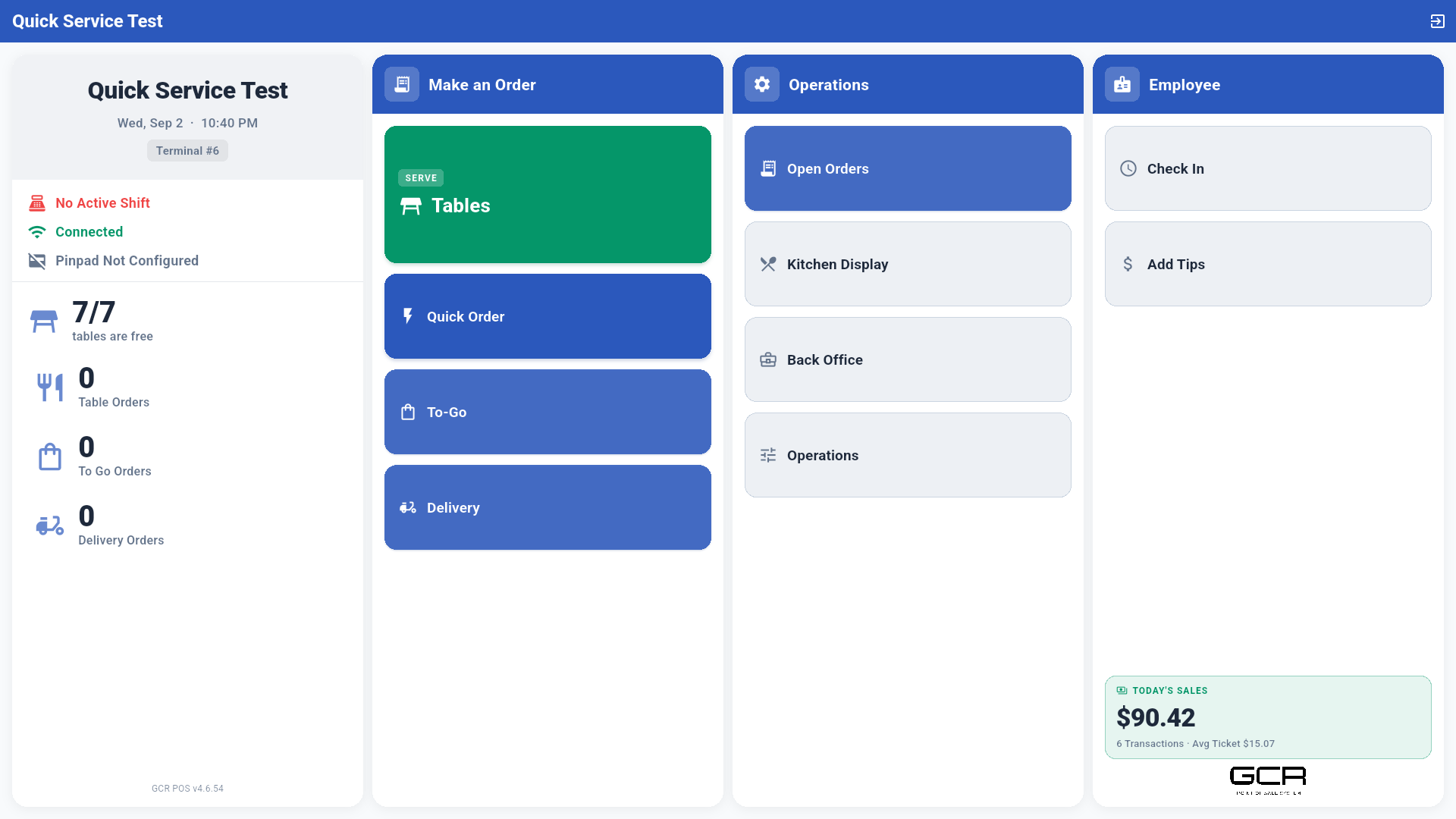
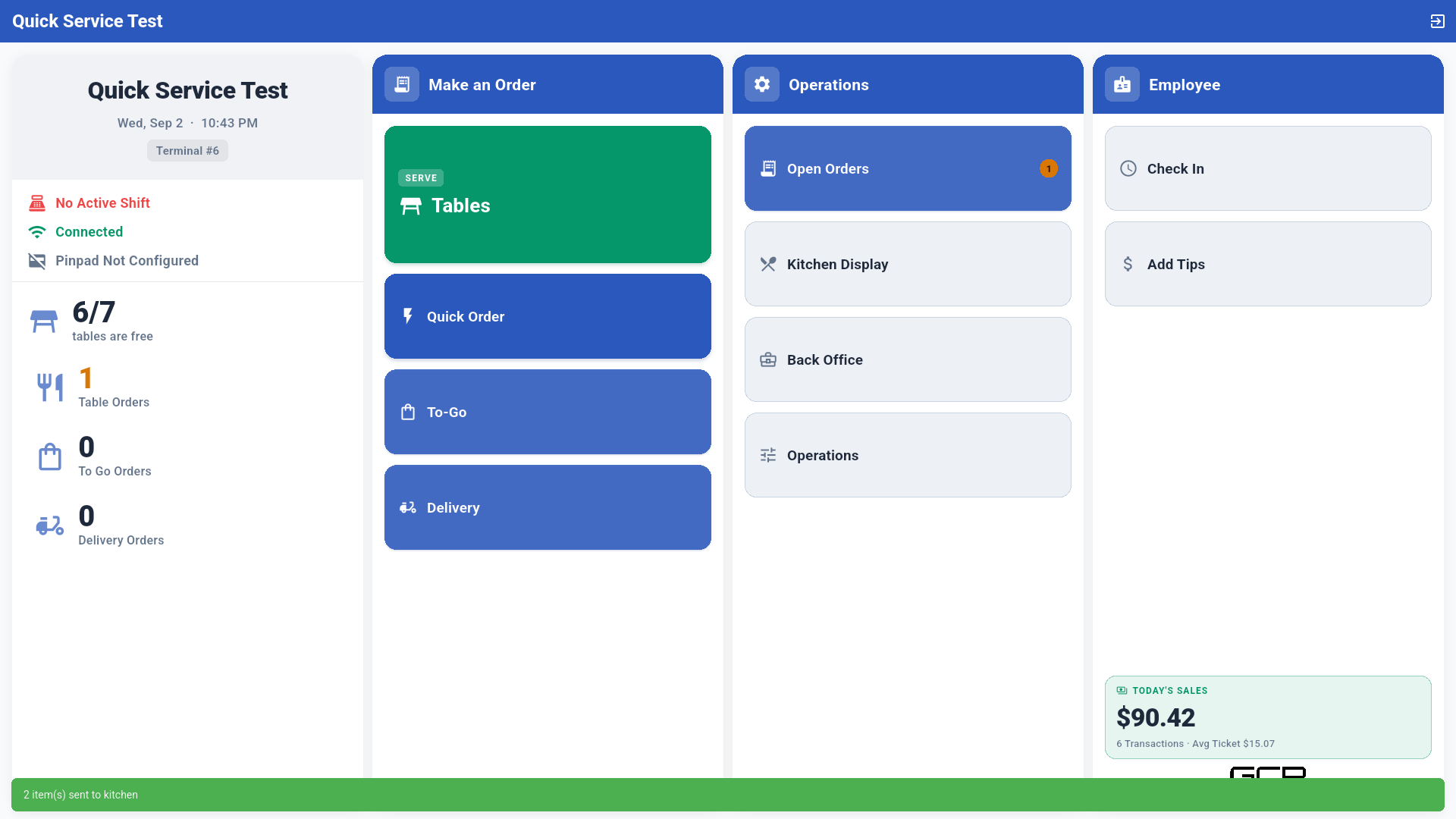
In Full Restaurant mode the terminal goes straight to the home screen — no login PIN. Each waiter identifies per action with their PIN. The primary action is SERVE Tables; Quick Order, To-Go, Delivery, Open Orders, Kitchen Display, Back Office, Operations, Check In and Add Tips are also available.
2. Per-action PIN (waiters)
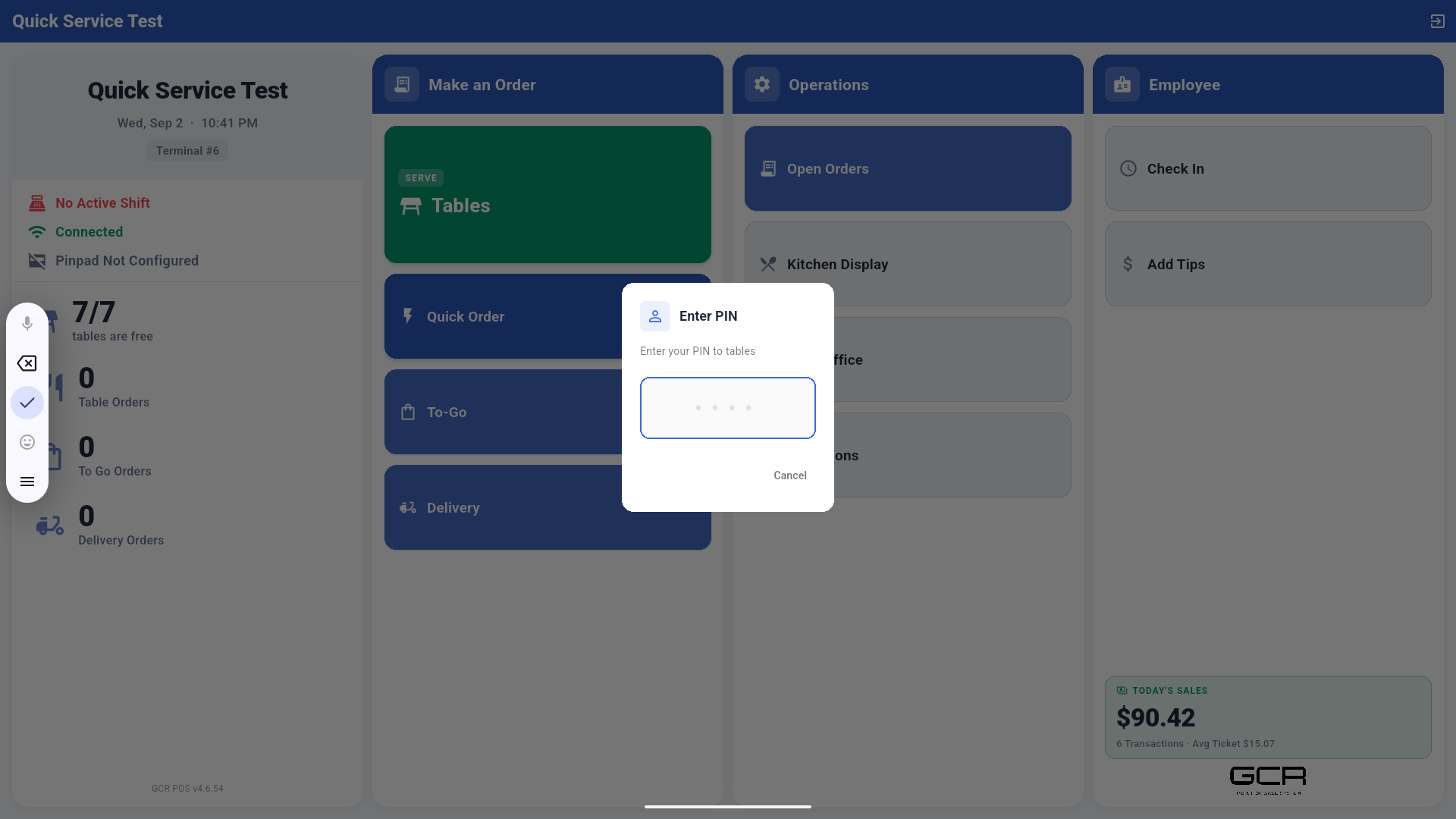
Tapping Tables (or any protected action) asks for the employee PIN, so every order, kitchen send and payment is recorded under the waiter who did it.
3. Floor plan
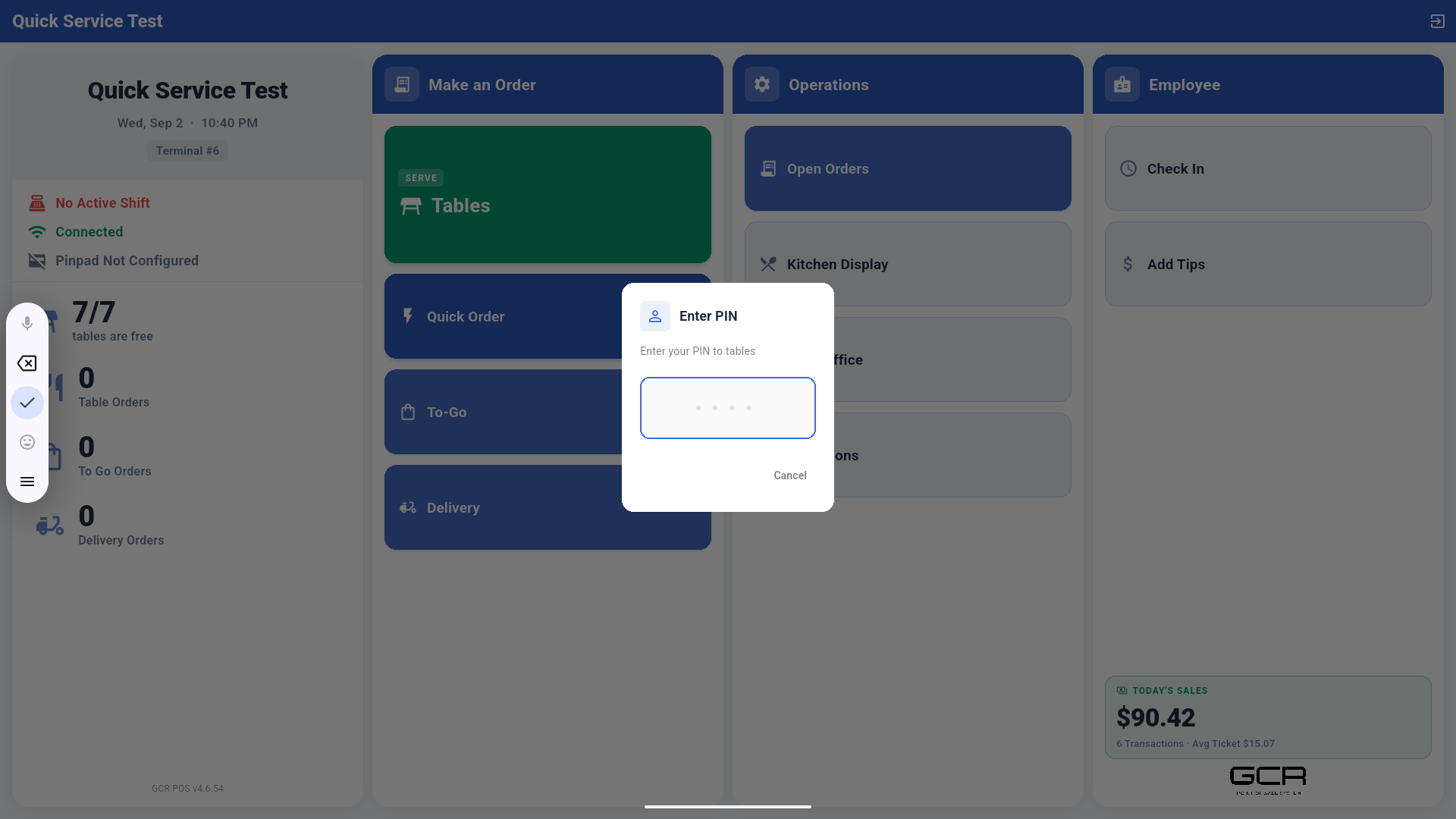
- Sections on top (Main, Bar, sección 1…), with table counters.
- Green = free; red "En uso" = occupied. Each table shows its capacity.
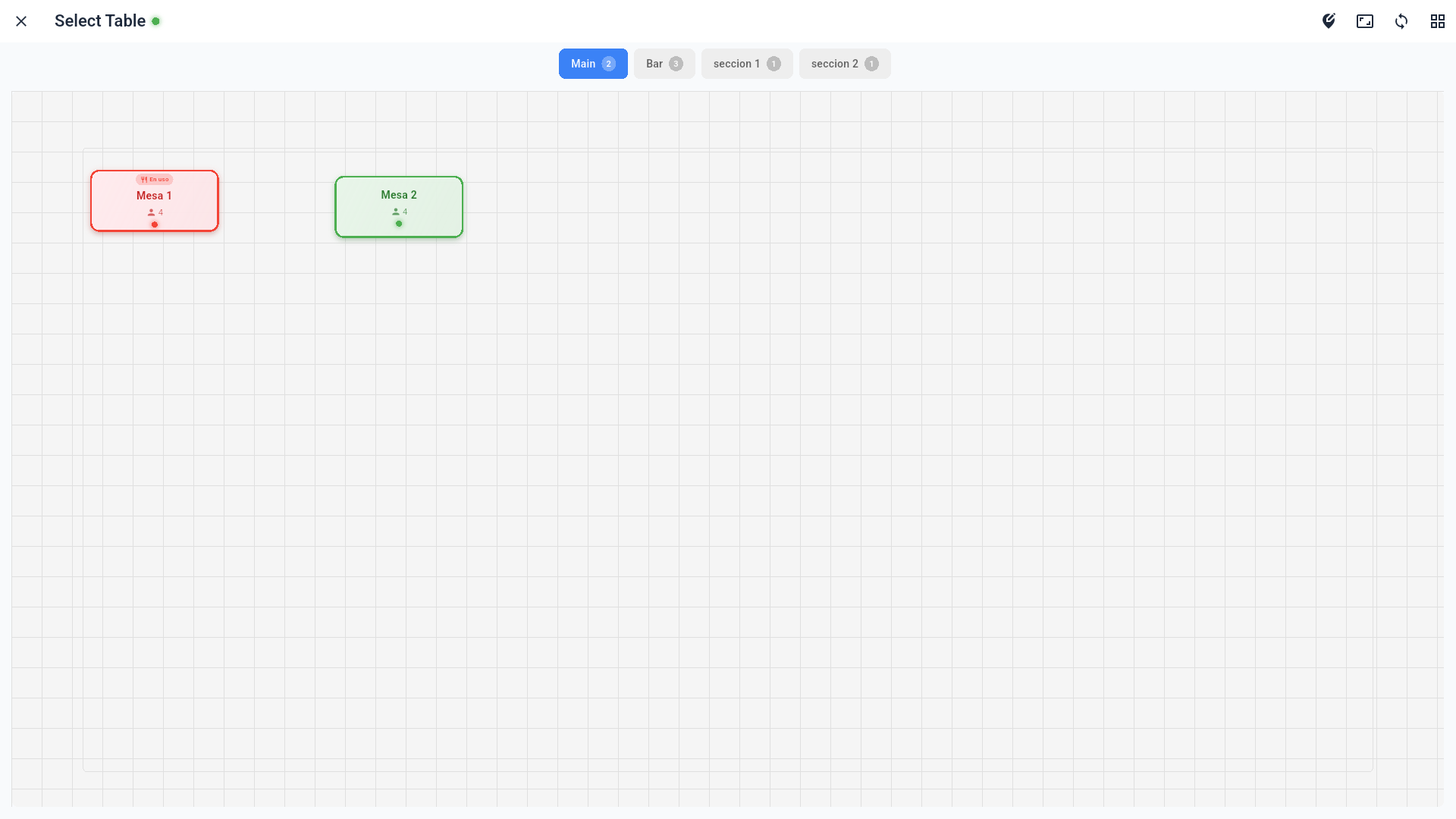
4. Taking a table's order
Tap a free table to open its order:
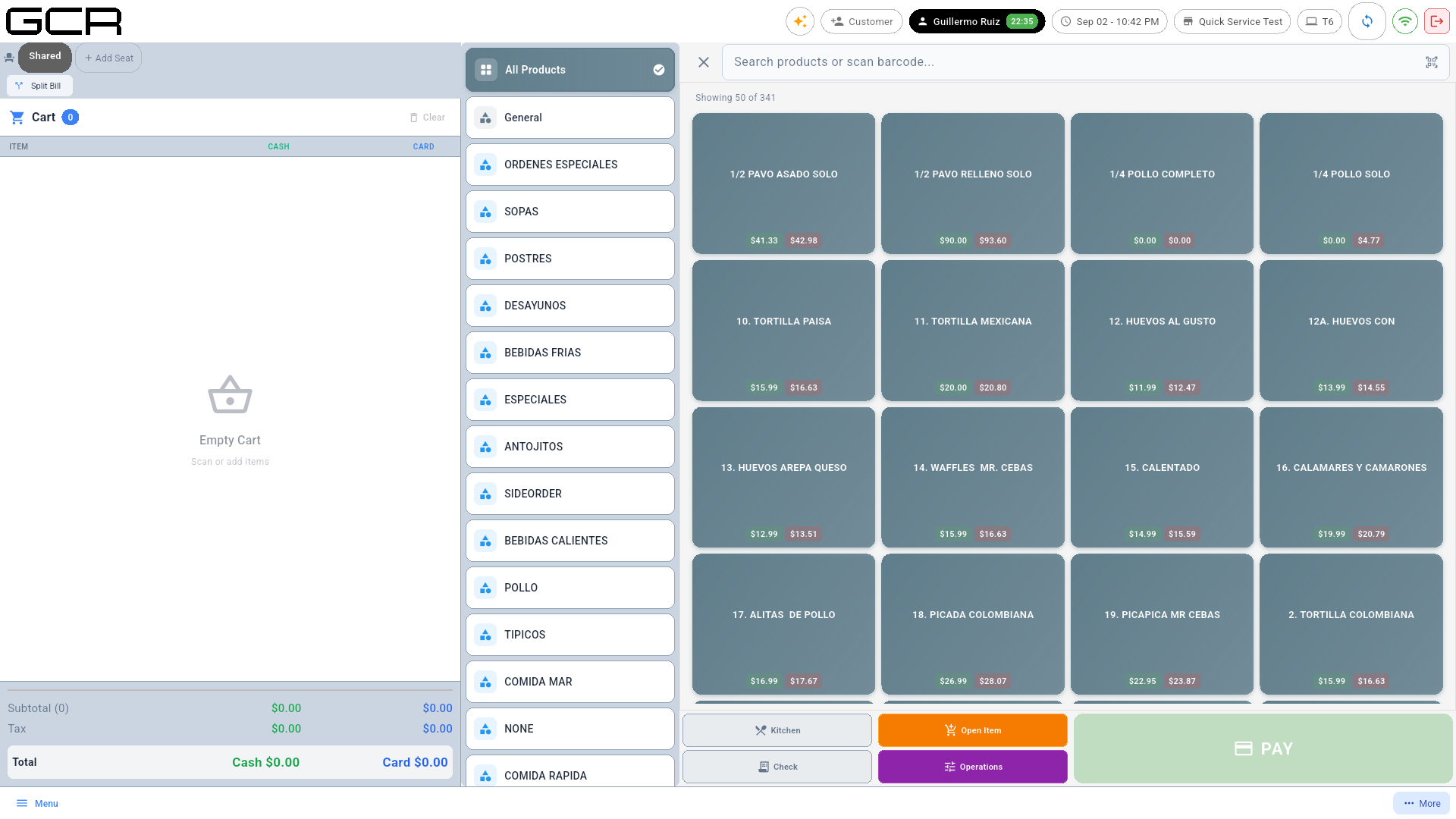
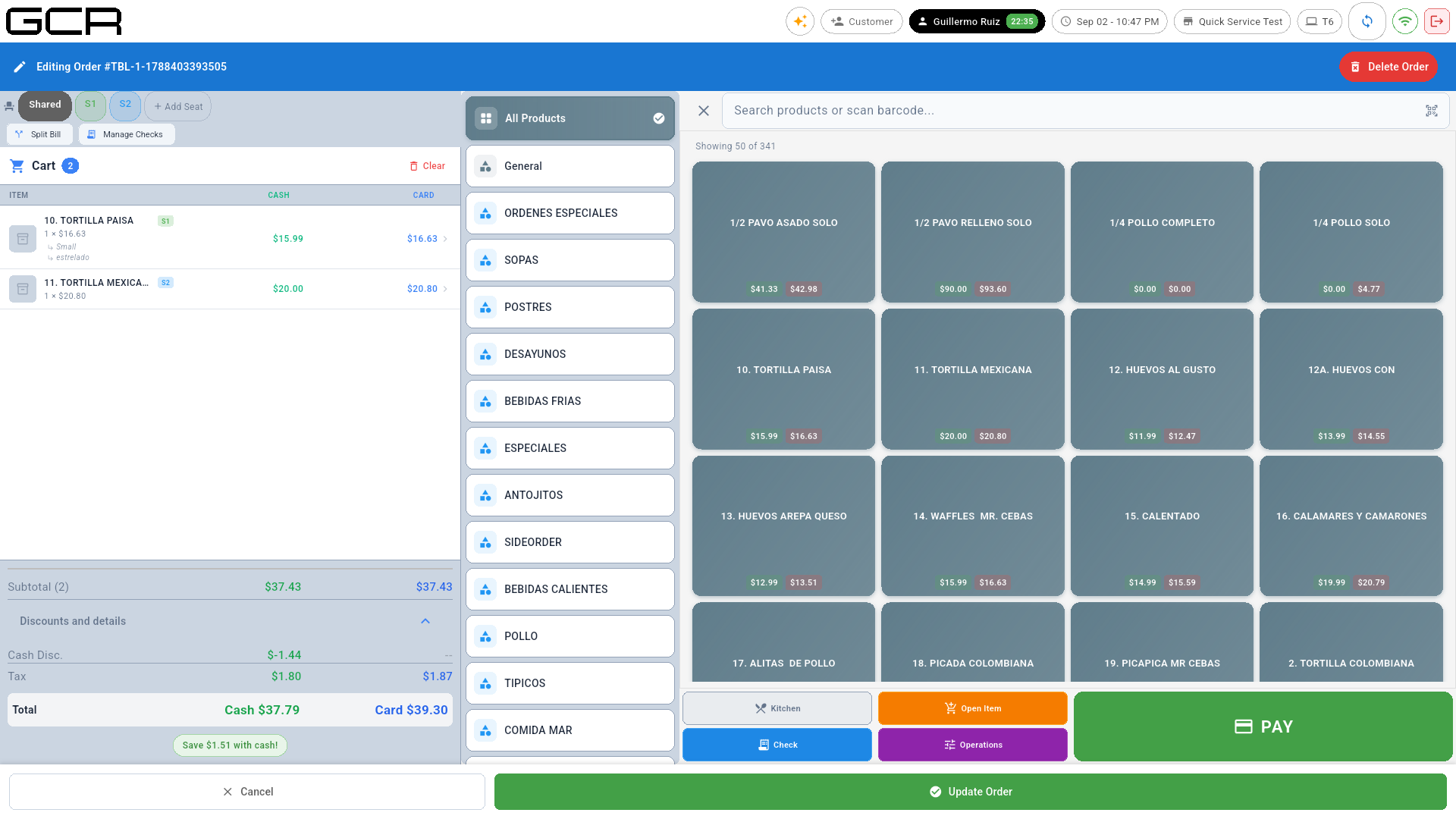
- Shared / + Add Seat: items can go to the shared check or to a seat (S1, S2…). Tap + Add Seat per guest and select the seat before adding their dishes.
- Products with modifiers open their dialog when tapped. The top bar searches by name or code; a USB scanner adds the product directly (handy for bottled bar drinks).
- The cart tags every item with its seat:
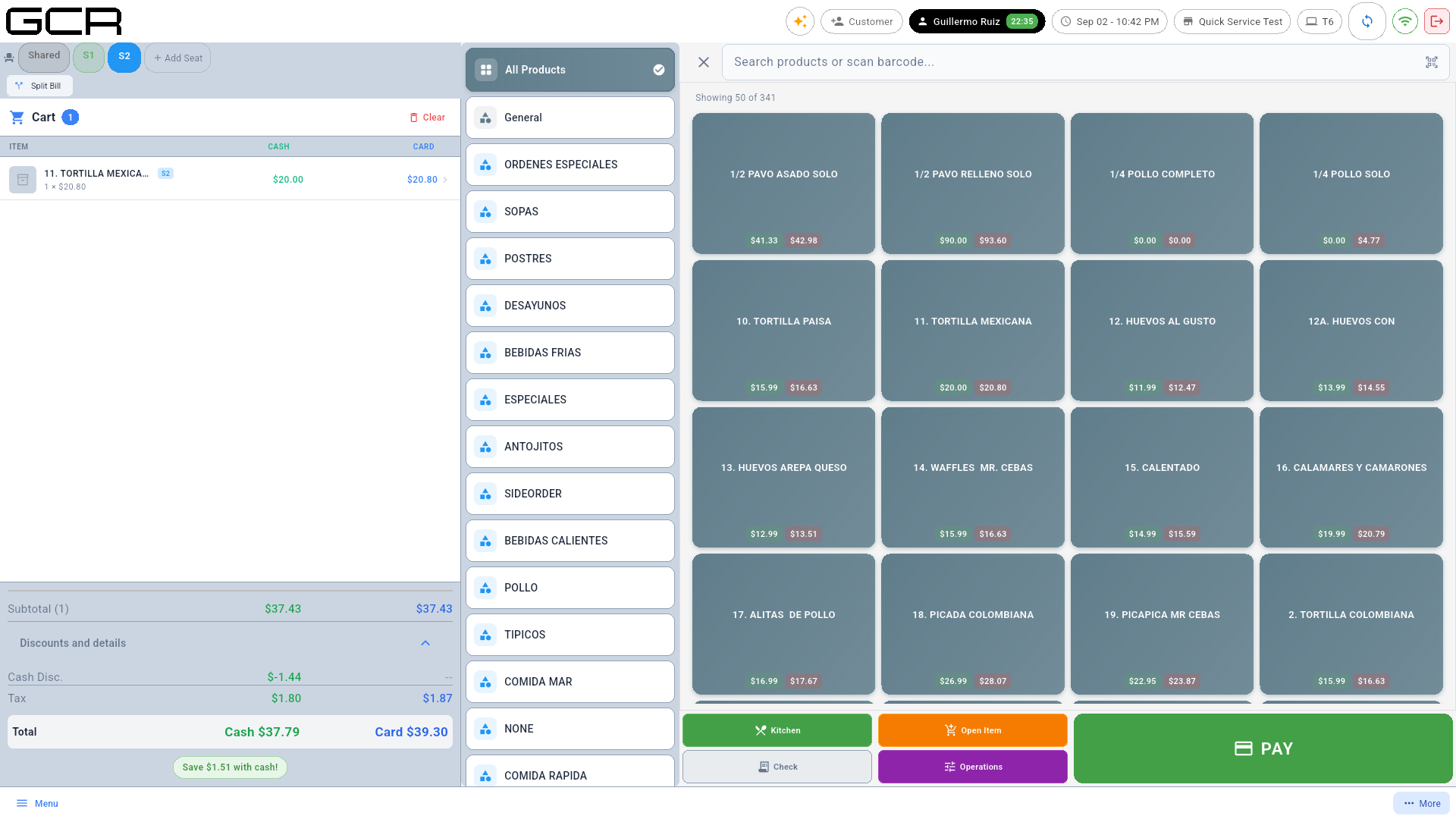
Order buttons
- Kitchen — sends the new items to the kitchen (ticket). The table becomes occupied and the order appears in Kitchen Display and Open Orders.
- Check — prints the pre-check.
- Operations — discounts / gratuity.
- PAY — immediate payment.
5. Working an occupied table
Tapping an occupied table opens its action sheet:
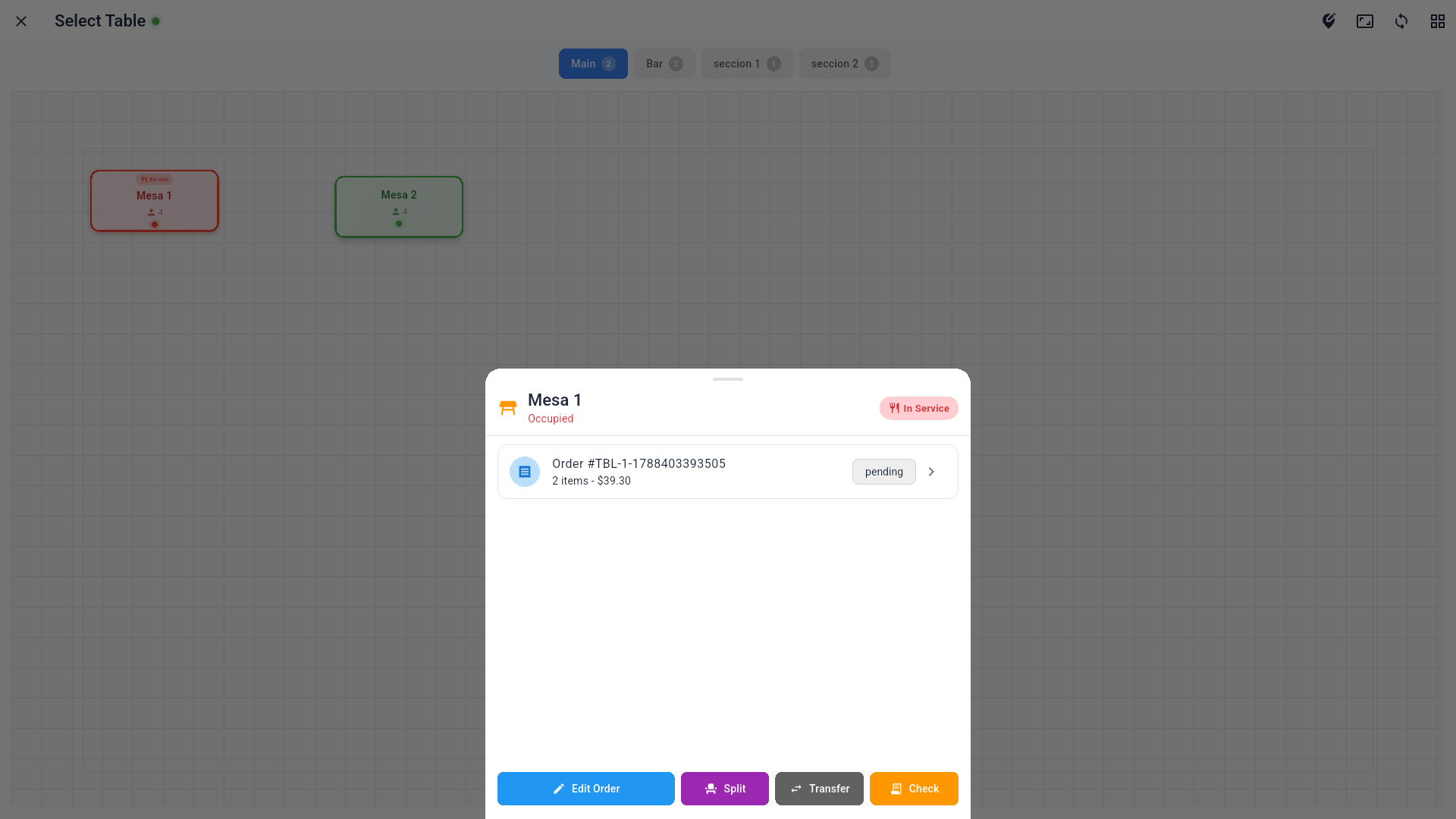
- Edit Order — reopens the order to add or remove items (send the new ones with Kitchen; Update Order saves).
- Split — assigns items to seats (see 6).
- Transfer — moves the order to another table.
- Check — prints the bill, with options:
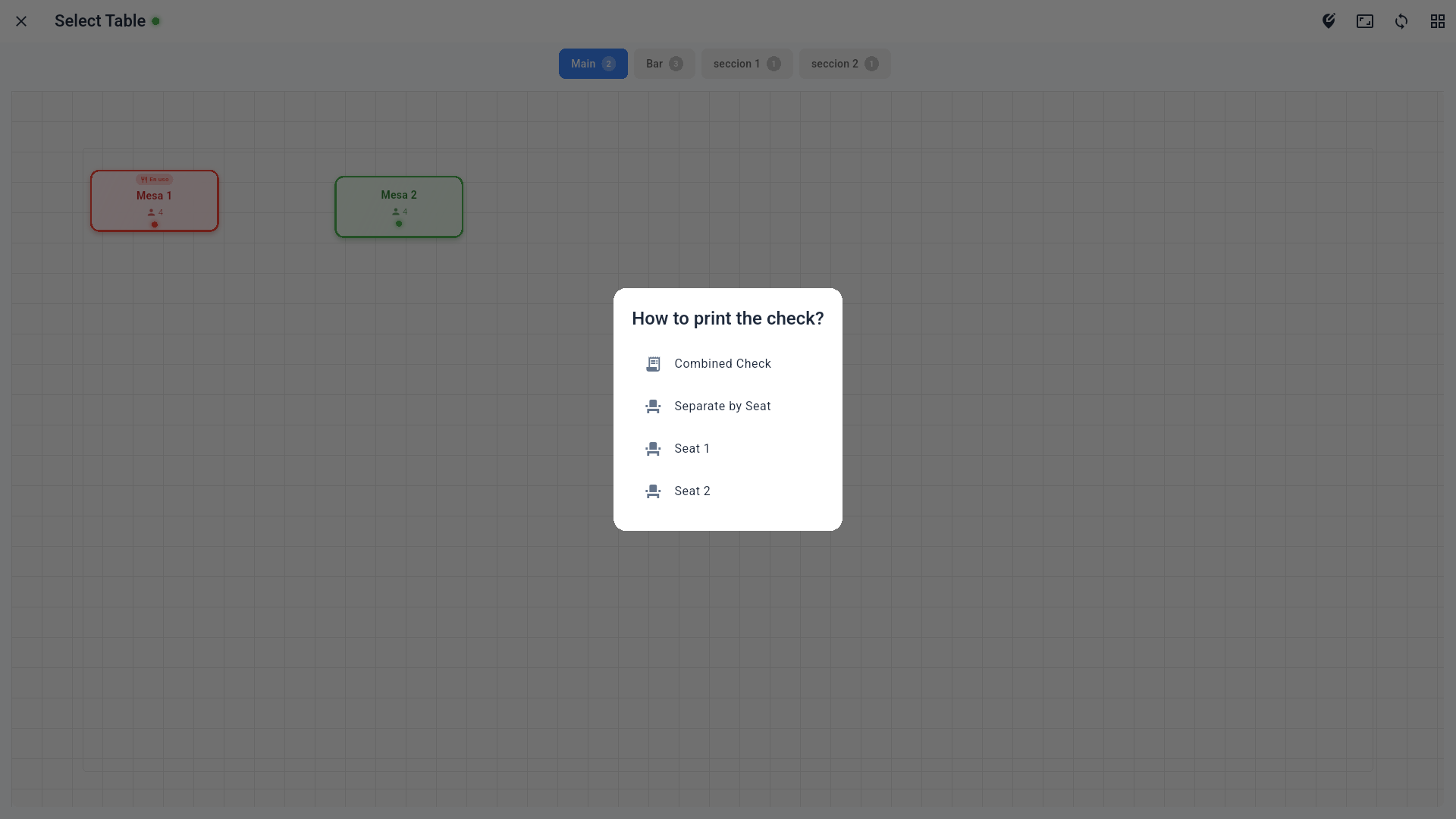
Combined Check (one bill), Separate by Seat (one per seat), or a specific seat's check.
With no printer configured you'll see "Error: Check the printer connection". Configure it in Settings → Hardware.
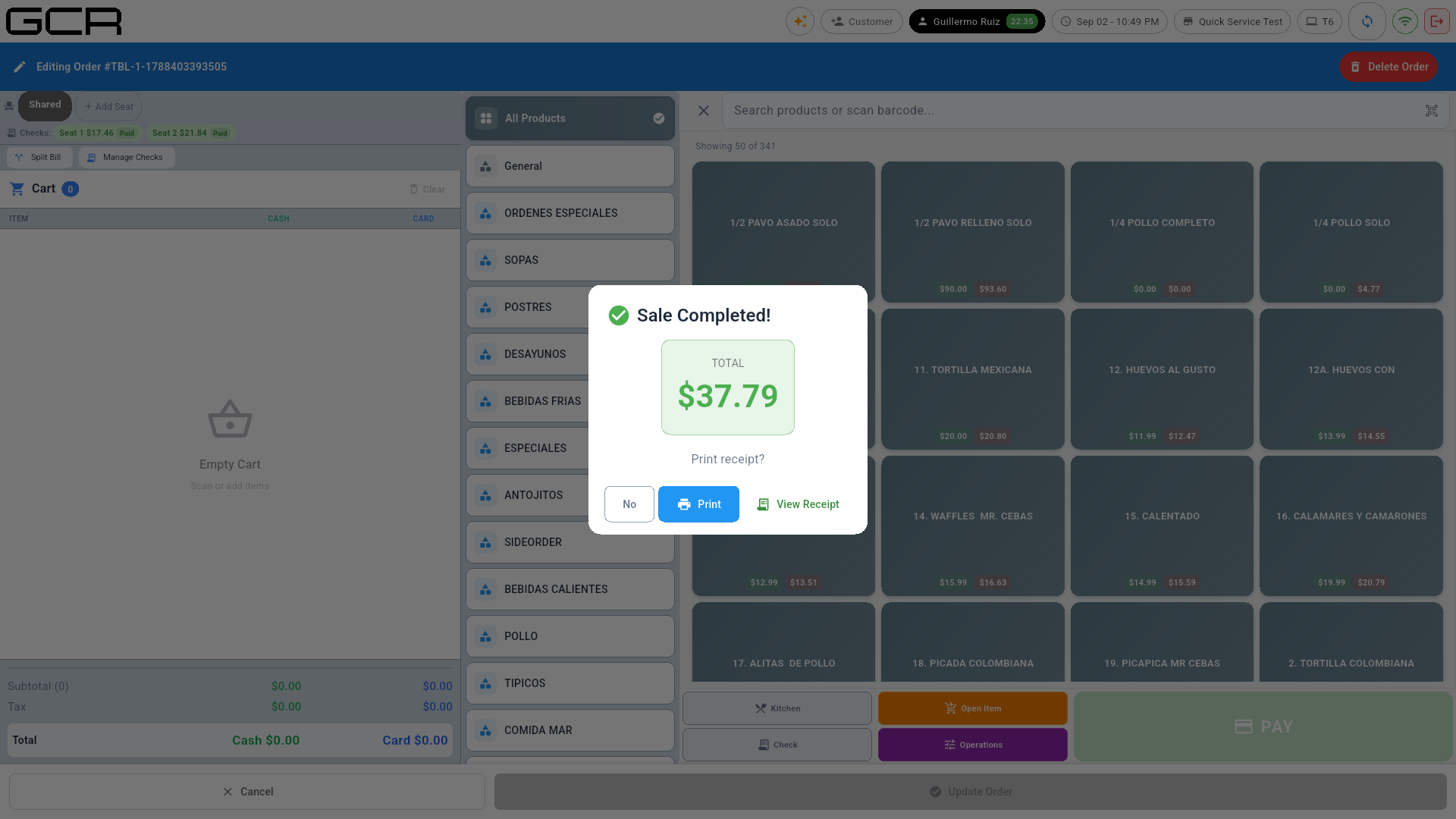
The Checks: bar shows each check's status (Seat 1 $17.46 Paid…) when the table has split checks. Delete Order (top right) cancels the whole order (permission required).
6. Splitting the bill
6.1 Assign seats
Split (or the Split Bill button inside the order) opens the assignment screen:
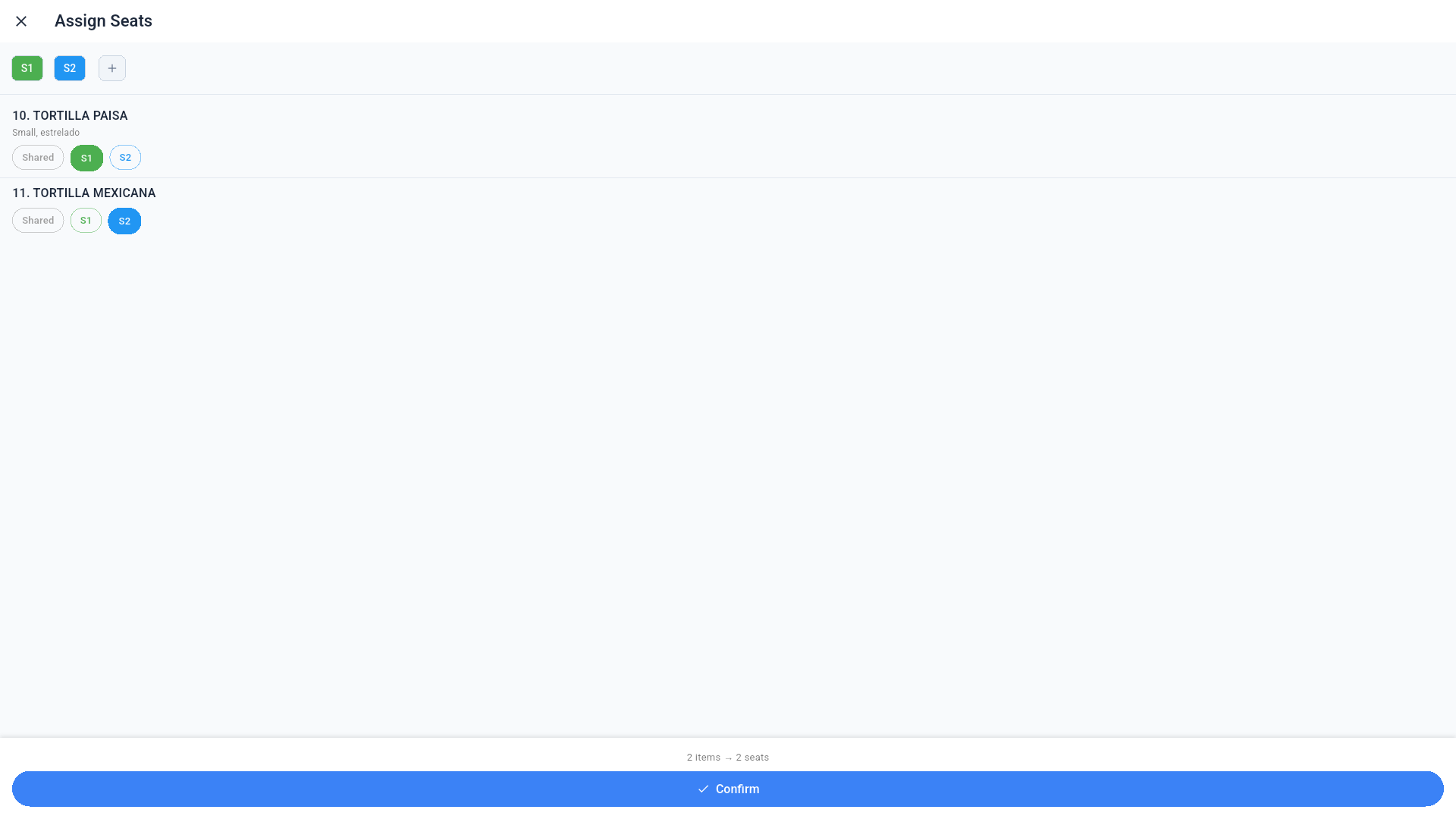
Tap the Shared / S1 / S2… chip on each item and confirm.
6.2 Split methods
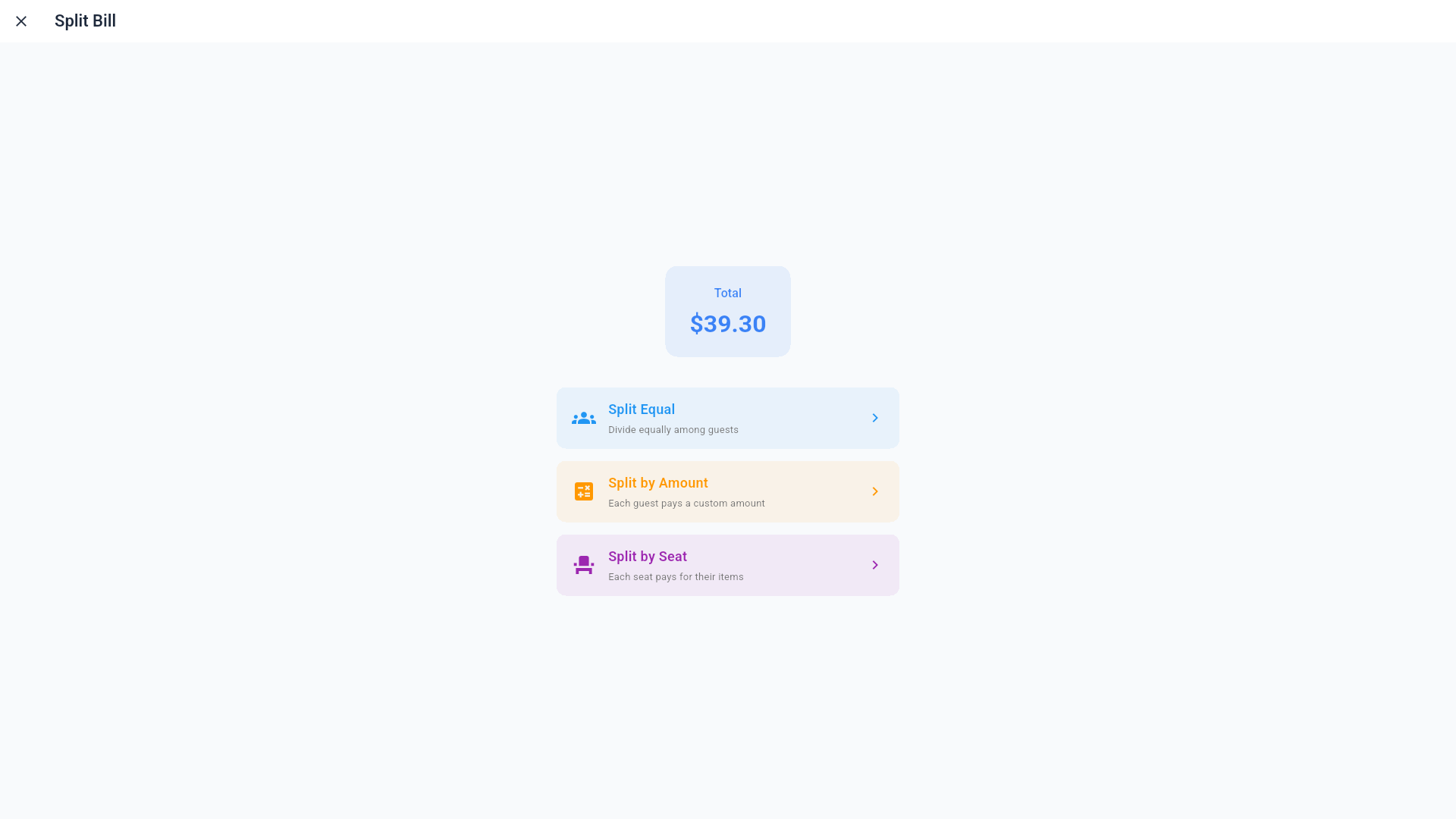
- Split Equal — divides the total evenly among N guests.
- Split by Amount — each guest pays a custom amount.
- Split by Seat — each seat pays for its own items.
6.3 Paying by seat
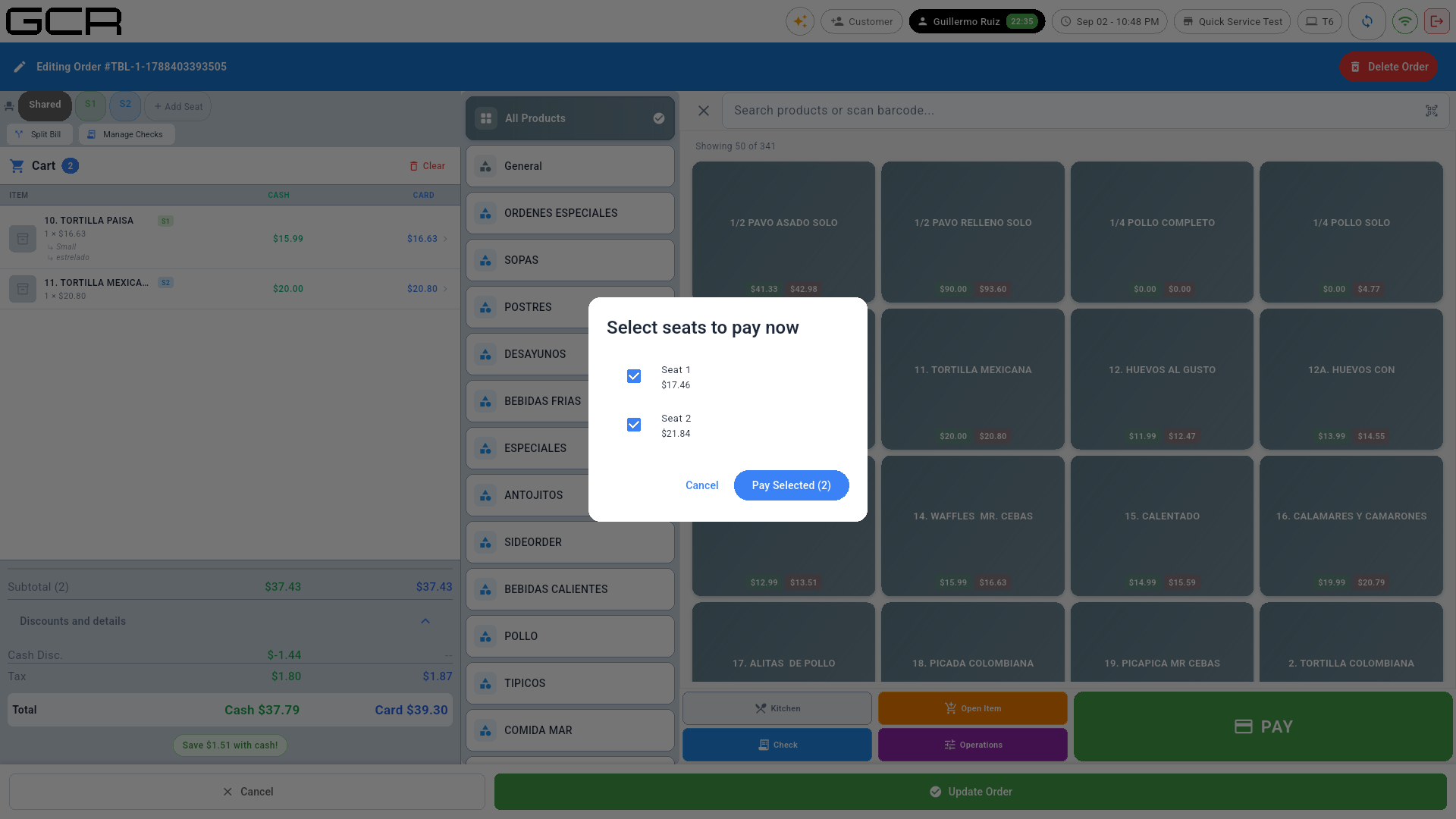
Choose which seats pay now (Pay Selected). The POS charges one seat at a time:
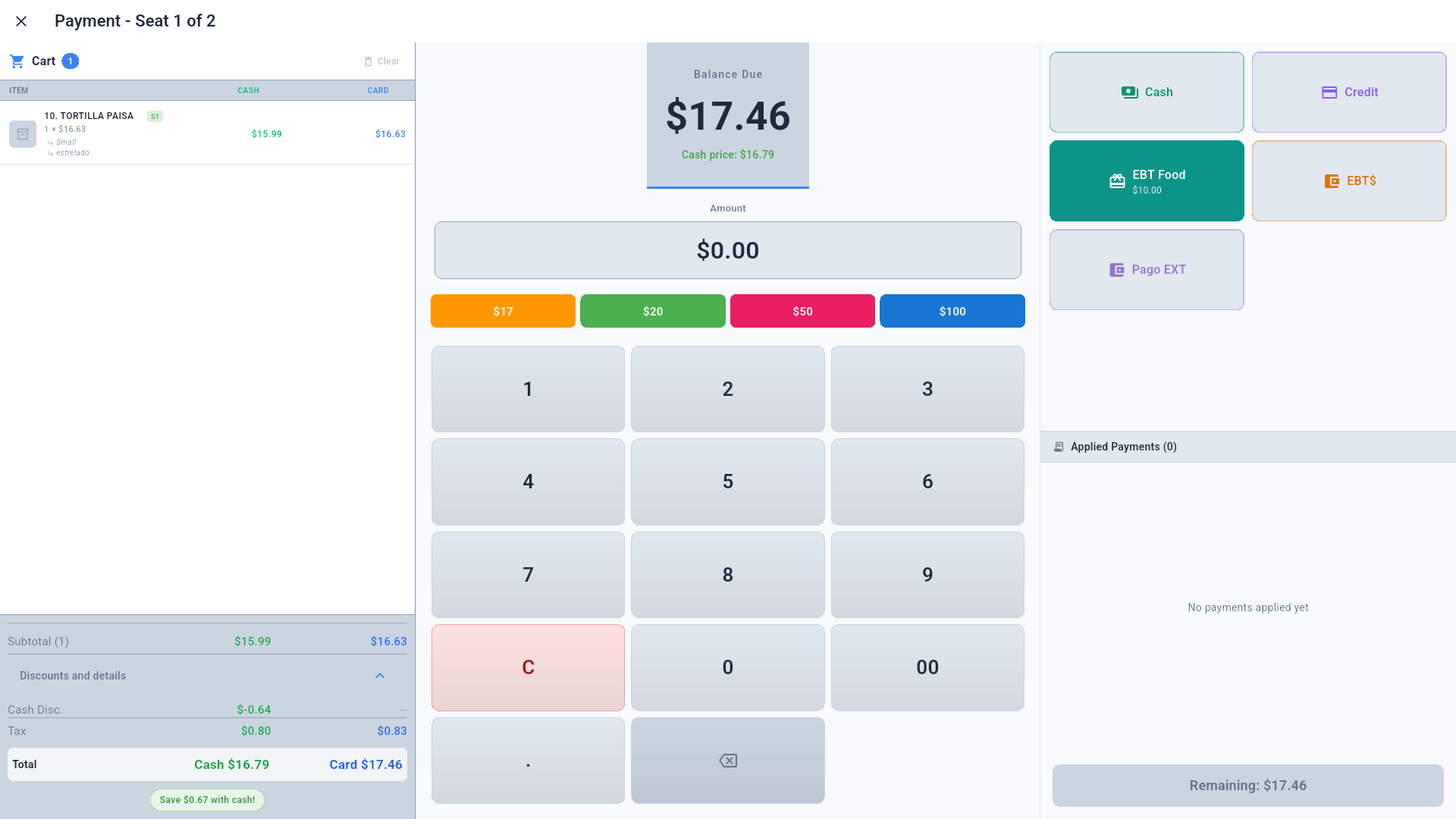
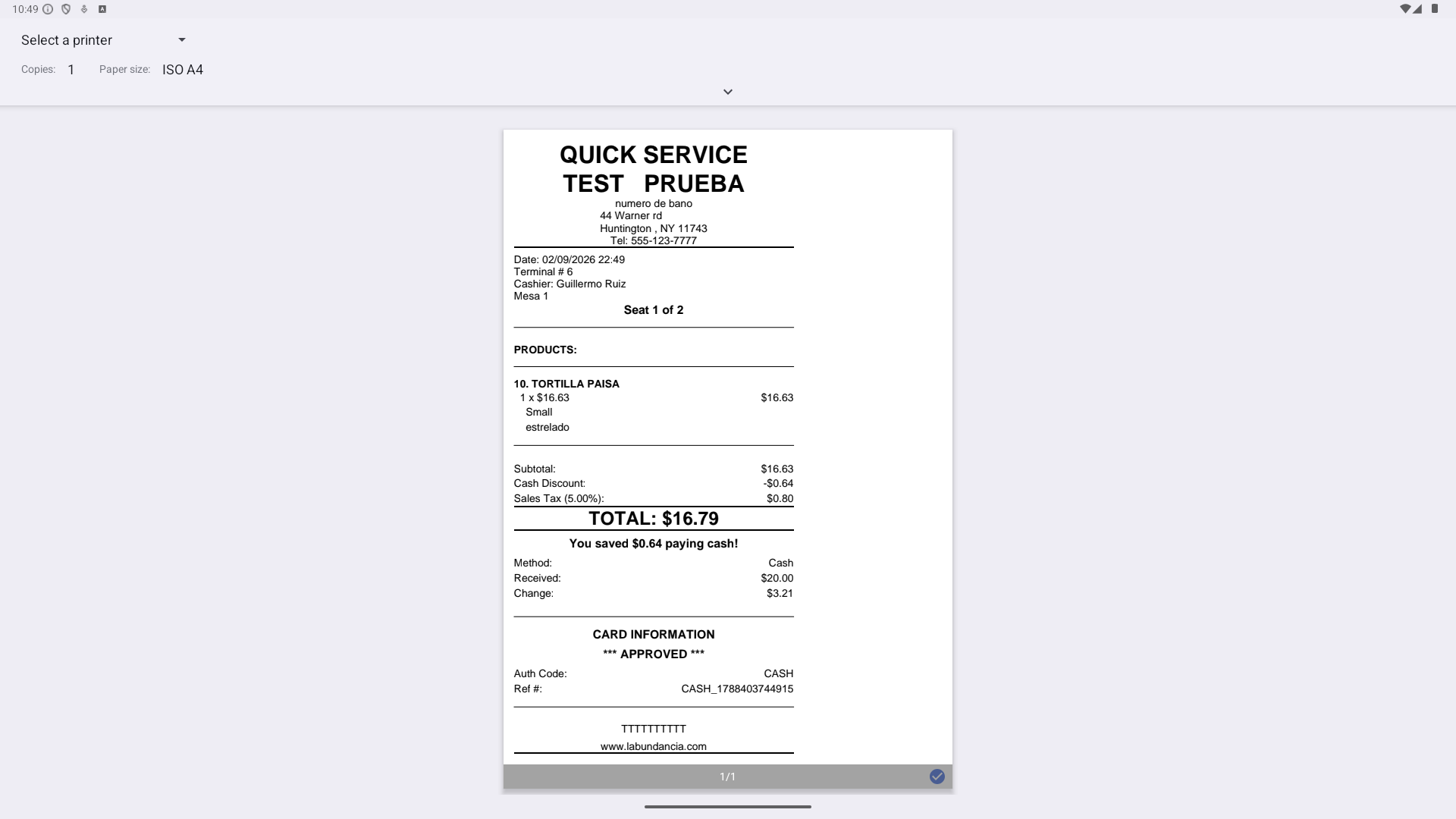
Each seat gets its own payment screen (its balance and tenders, including EBT when applicable) and its own receipt:
When the last seat pays, the sale completes and the table is freed:
7. Kitchen
- Kitchen Display (home) shows active orders through the New → Preparing → Ready → Completed cycle (see Quick Service manual §5, or the Kitchen Display Station manual for a dedicated device).
- Kitchen Audit (Back Office) keeps the immutable change log.
8. Online orders and integrated delivery
The restaurant also receives external orders, handled with the same kitchen flow as tables:
- Own online store (Storefront): "Online Order" (
OL-) orders from shop.gcrpos.com — prepaid by card or "pay at pickup" (charged at the counter when the customer arrives). - Uber Eats:
UE-orders, always prepaid by the platform. DoorDash and Grubhub coming soon.
When an order arrives: pulsing red badge + chime every 30 s; accept or reject it from Open Orders → "Incoming Platform Orders" (with a countdown). On accept, the ticket prints to its station automatically and the order enters the Kitchen Display with the channel banner and the PREPAID chip. Ready on the KDS notifies Uber / sends the "ready for pickup" email; Deliver prints the handoff slip. If the platform cancels an accepted order, the POS voids the sale automatically. If the POS is closed, the cloud pauses the store on the marketplace and resumes it by itself when the POS returns.
The full detail (payments, the Z report's "Delivery Platforms" section, portal setup and auto-accept) is in the Quick Service manual §10 — it applies identically in Full Restaurant.
8.1 "Was the order delivered?" and who takes it out
Two portal settings (Settings → Restaurant, the "Was the order delivered?" after payment card) change what happens when a non-table order (Quick Order, To-Go, Delivery) is paid and handed over:
- Quick orders / To-go orders / Delivery orders (ship on) — after payment the POS asks whether the order was already delivered. With that order type's toggle off it goes straight back to the home screen and the ticket stays with the kitchen; it is never auto-completed.
- Ask who is delivering (ships off) — on handoff from Open Checks (Deliver / Picked Up), the POS asks which employee is taking the order and prints it on the delivery slip. The list holds the employees whose role grants the Deliver Orders permission (the Driver role ships with it). Skip prints the slip with no driver.
Dine-in orders use neither: the table is released when the check closes.
9. Register and shifts
- Charging requires an open cash shift (Open Shift). In restaurant mode it can be opened from the order screen's side menu or when paying.
- Operations (home) gathers Void Sale, Refunds, No Sale, Tax Exempt, Paid In/Out, View Shift Totals (X), Close Shift (Z) and Settle CC Terminals — see Back Office & Settings §6-8.
10. Operating tips
- Send to kitchen with Kitchen as soon as you take the order; add later via Edit Order (only new items are re-sent).
- Use seats from the start when a table will split the bill: the by-seat split and the kitchen tickets stay clean.
- The pre-check (Check) closes nothing — it is just a printout. The table is freed when the order is fully paid.