GCR POS — Kitchen Display Station (KDS)
Guide to the kitchen station: a dedicated terminal that shows the store's active orders full-screen so the kitchen can work them without touching the register.
Requirements: the store must run in Quick Service or Full Restaurant mode, and the terminal must have the kitchen_display profile (a technician sets it per terminal from the Merchant Portal). After syncing, the device becomes a kitchen station.
1. Entering the station
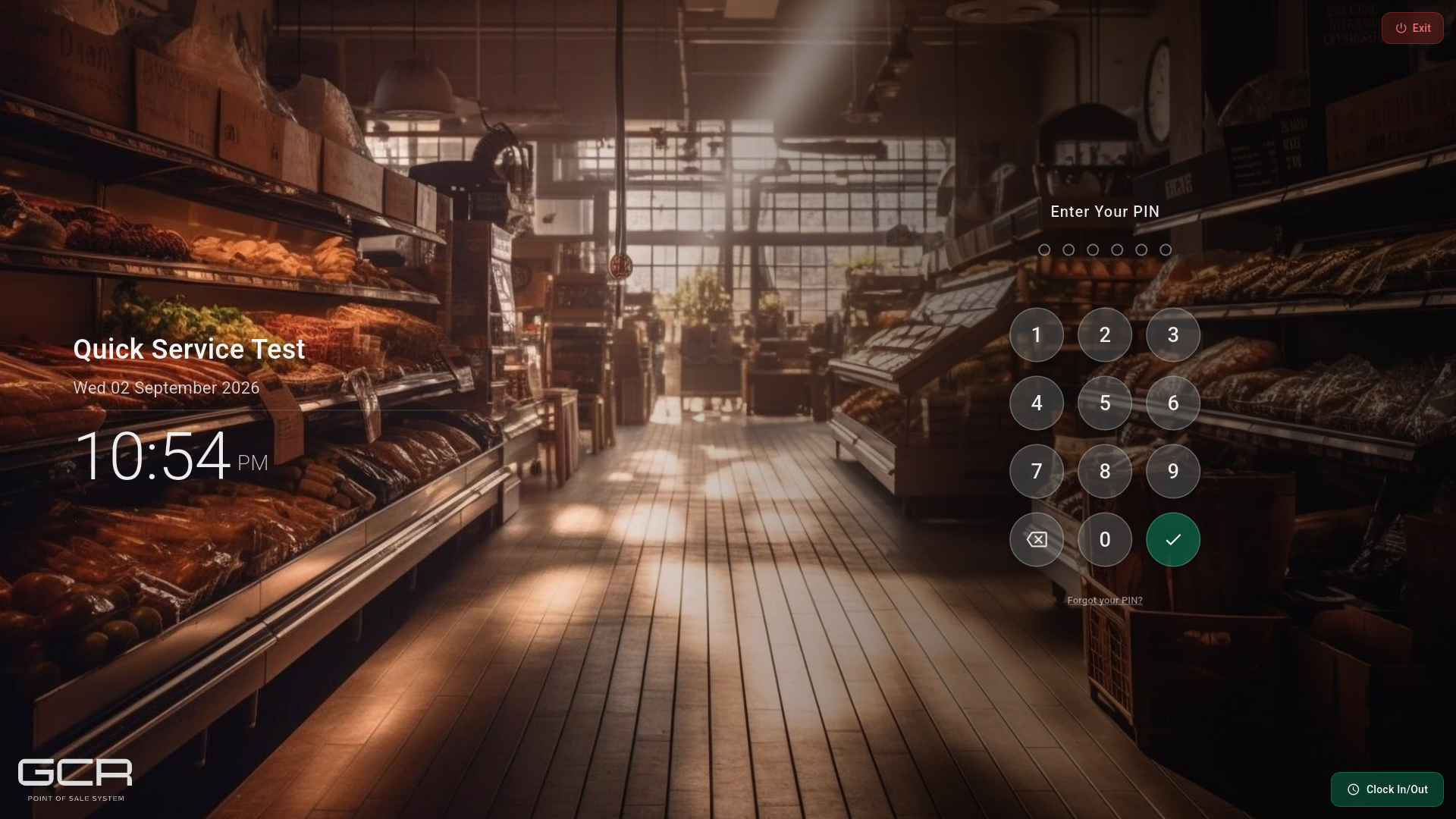
The station always asks for a PIN: only employees with the Kitchen Display permission can enter. Users without it are rejected with "This user does not have Kitchen Display access".
2. The kitchen screen
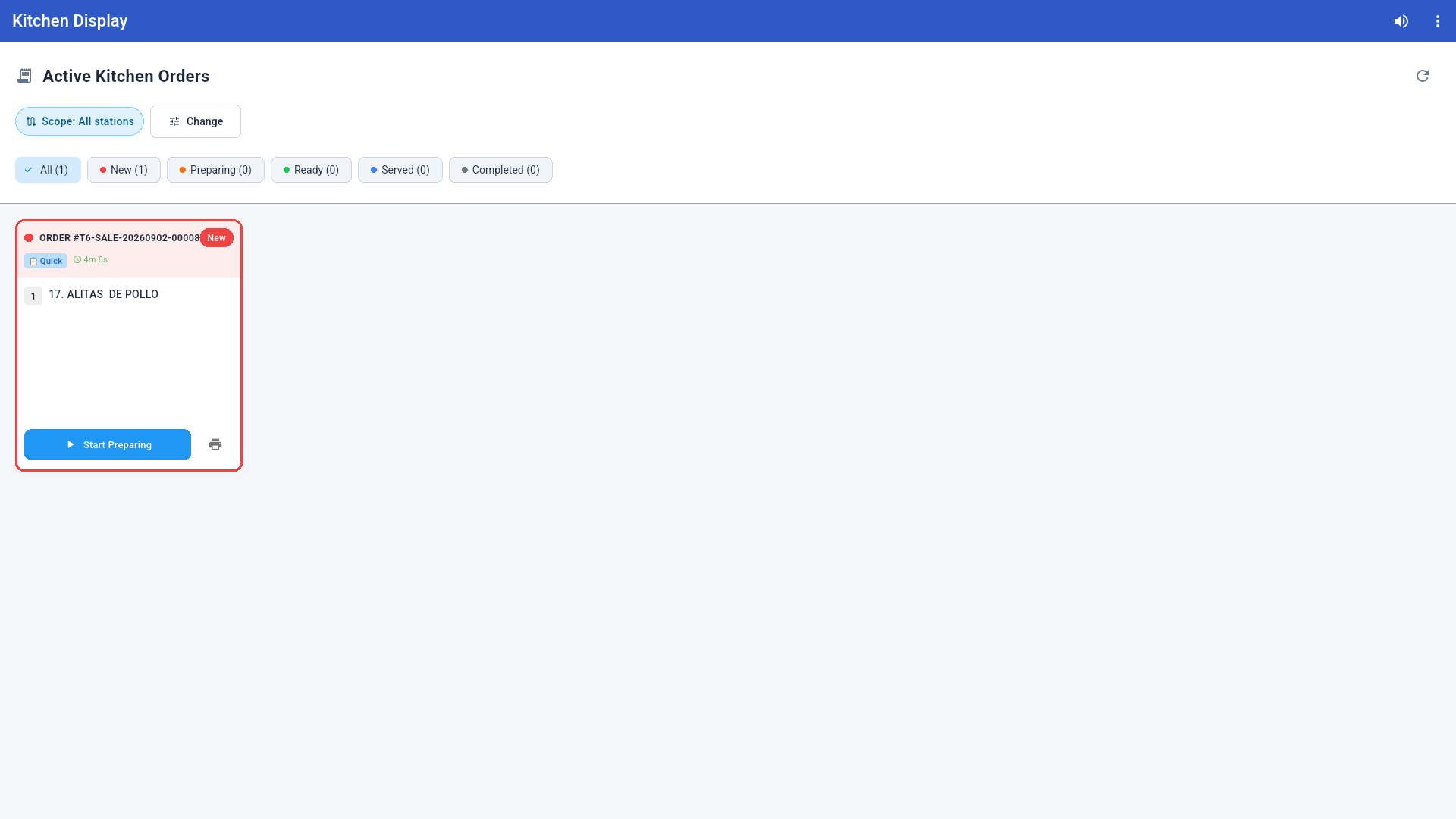
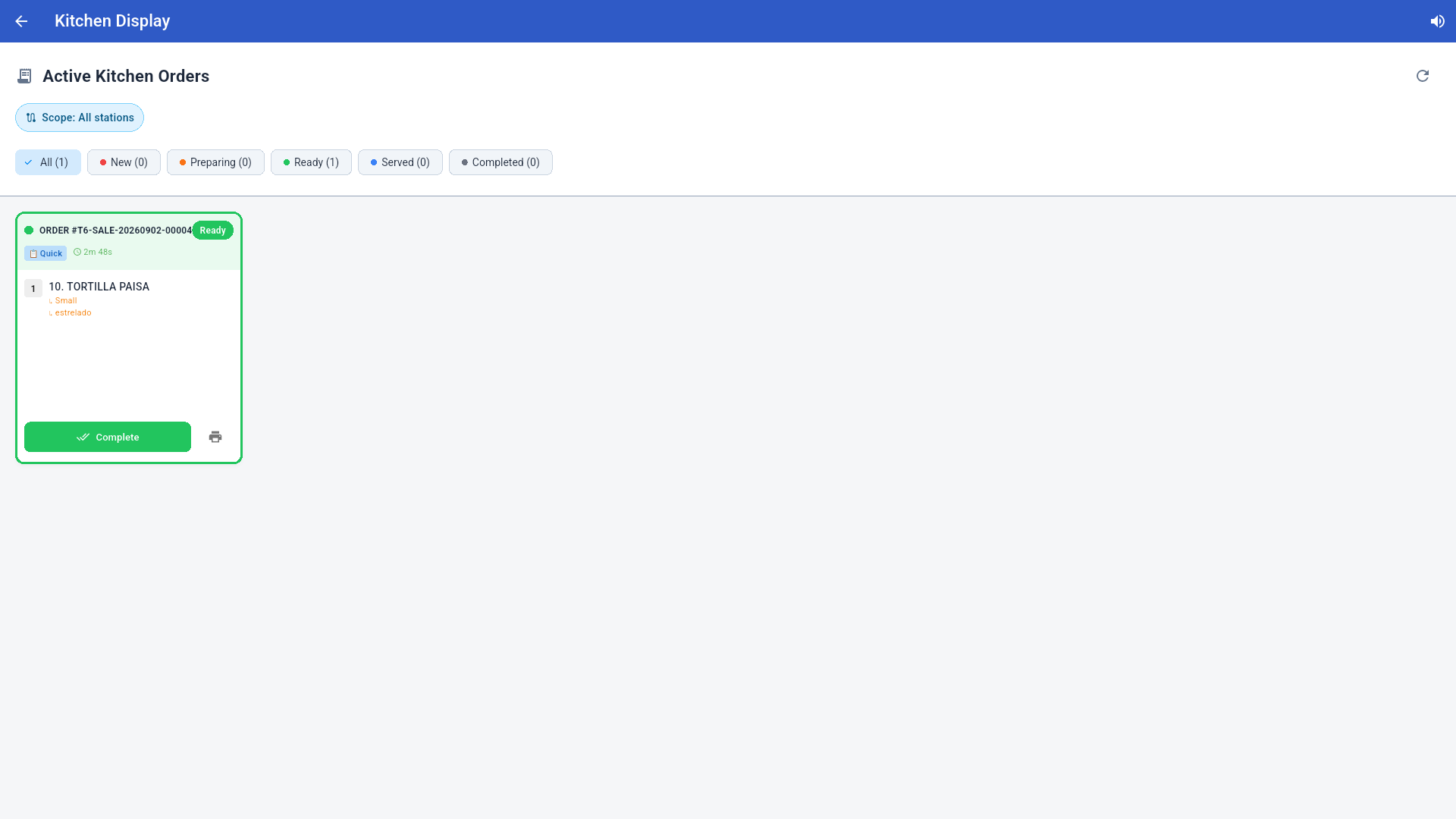
- Active Kitchen Orders full-screen: each order is a card with its number, type (Quick / Table / To-Go / Delivery), a timer since creation, the items with modifiers, and the action button for its current status.
- Status filters: All / New / Preparing / Ready / Served / Completed, with counters.
- Scope narrows the view to one station (see §4).
- The speaker icon (top right) enables or mutes the new-order bell: it rings every time an order enters the station. The refresh button forces an update (orders also arrive on their own in real time).
Reading the timer (urgency traffic light)
Each card shows the time elapsed since the order entered, colored by urgency:
| Color | Time in queue |
|---|---|
| 🟢 Green | under 5 minutes |
| 🟠 Orange | 5 to 10 minutes |
| 🔴 Red | over 10 minutes — work it now |
Customer notes and special instructions appear highlighted on the card; modifiers are listed under each item.
3. Working an order
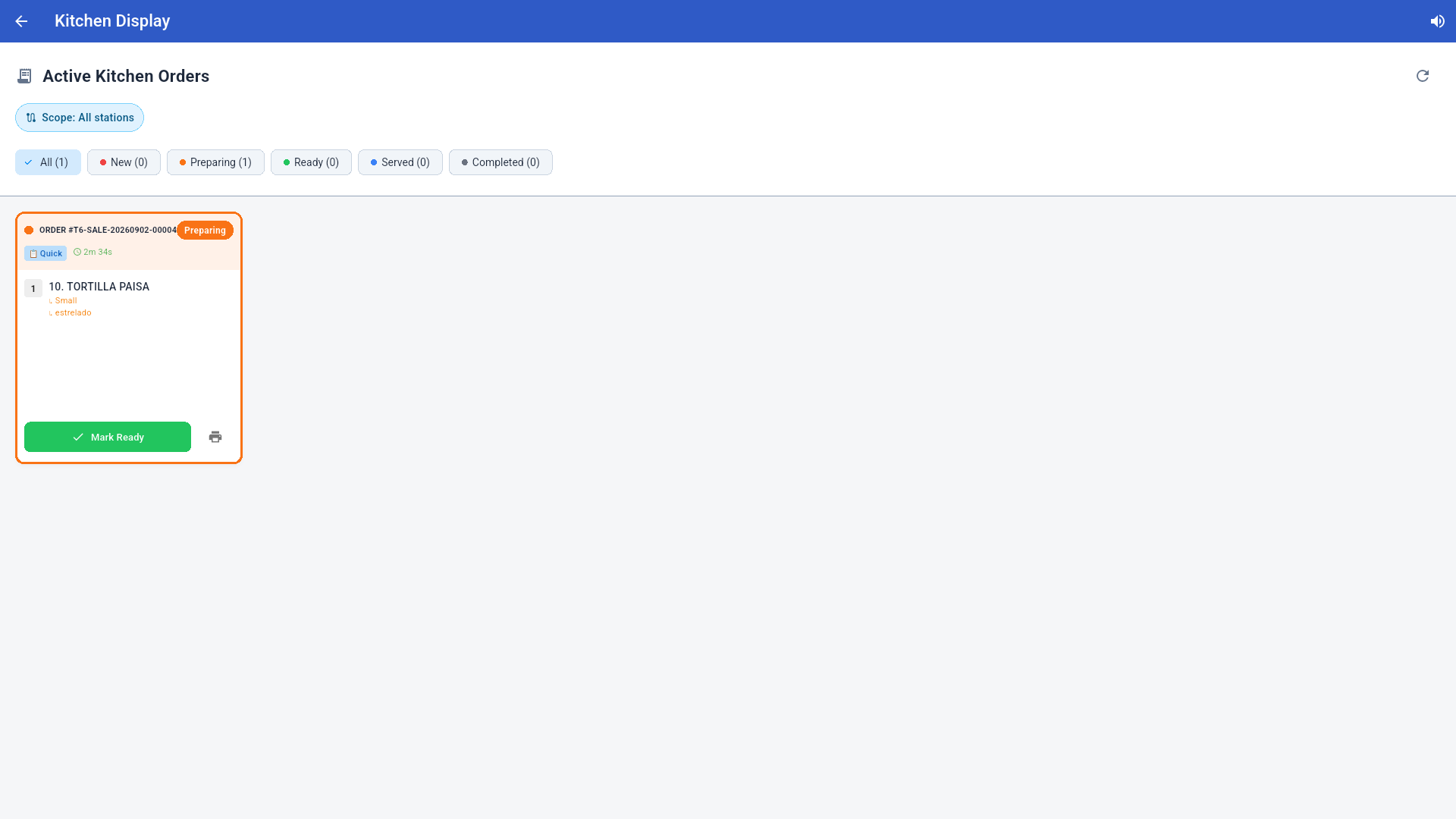
Each card's lifecycle:
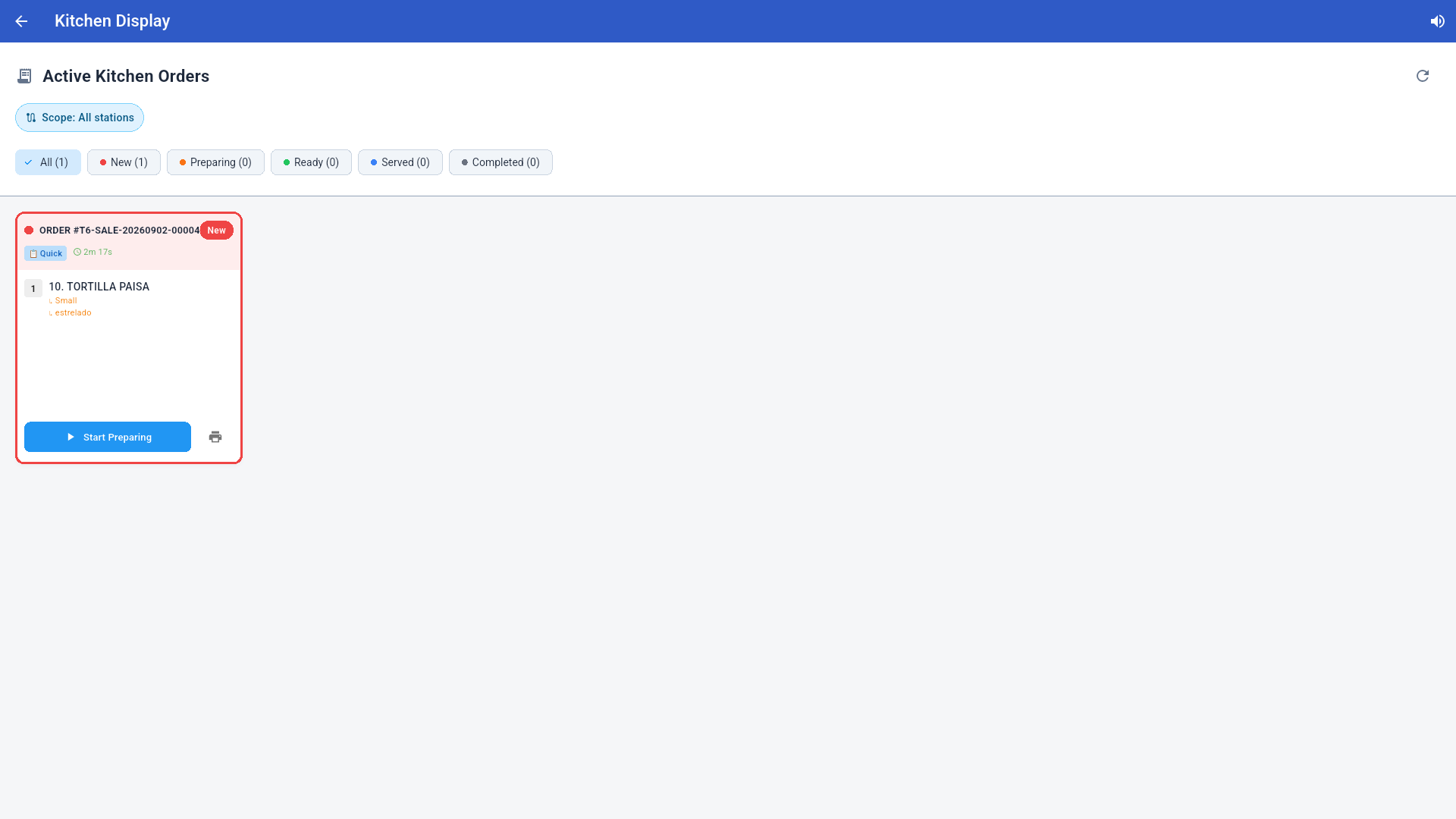
- New (red) → tap Start Preparing when cooking starts.
- Preparing (orange) → tap Mark Ready when done.
- Ready (green) → tap Complete on delivery/serve.
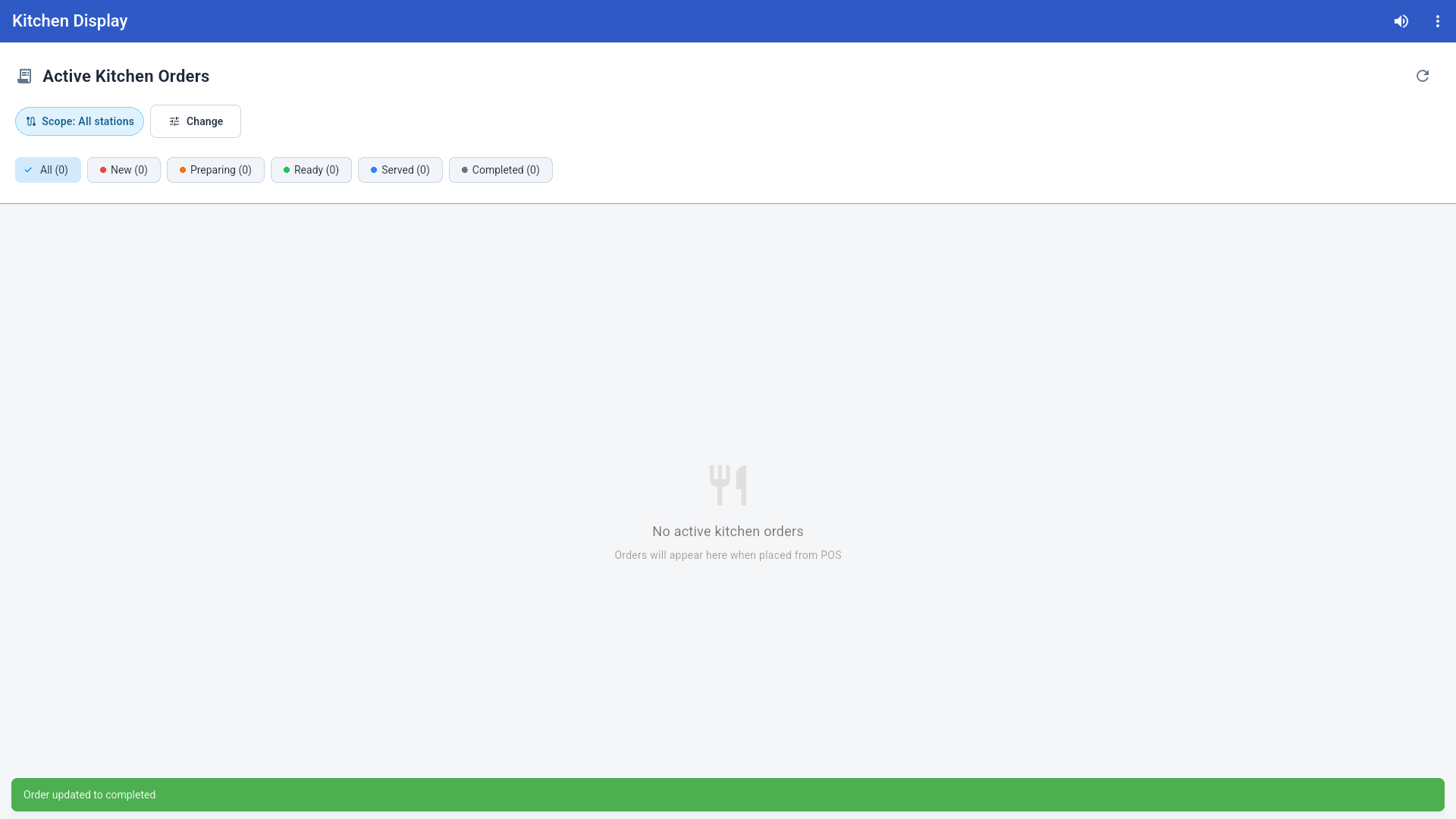
- The order leaves the active view.
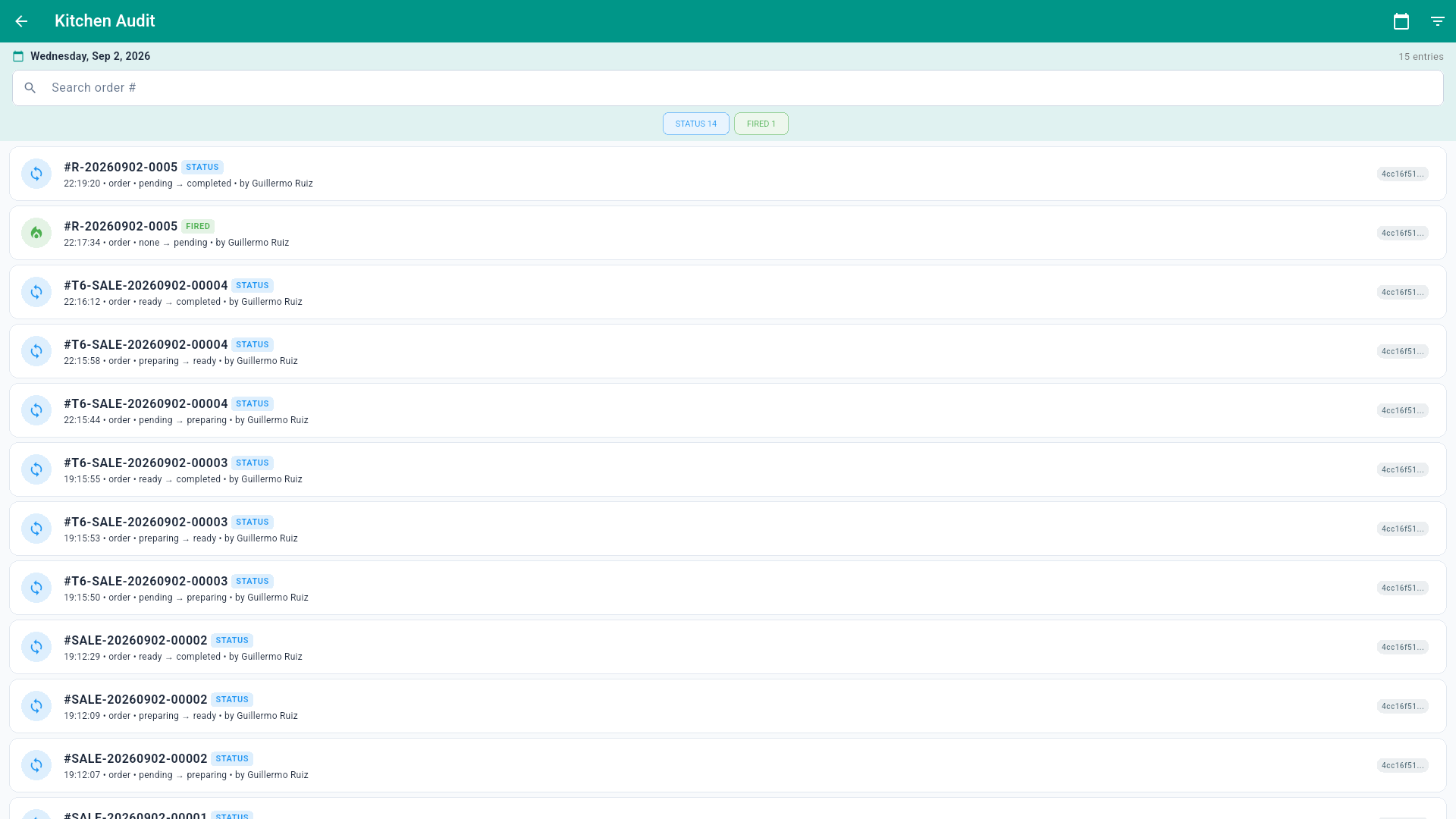
The printer icon reprints the ticket on the kitchen printer. Every status change is recorded in the Kitchen Audit log (Back Office) with user and time:
4. Station filter (Scope)
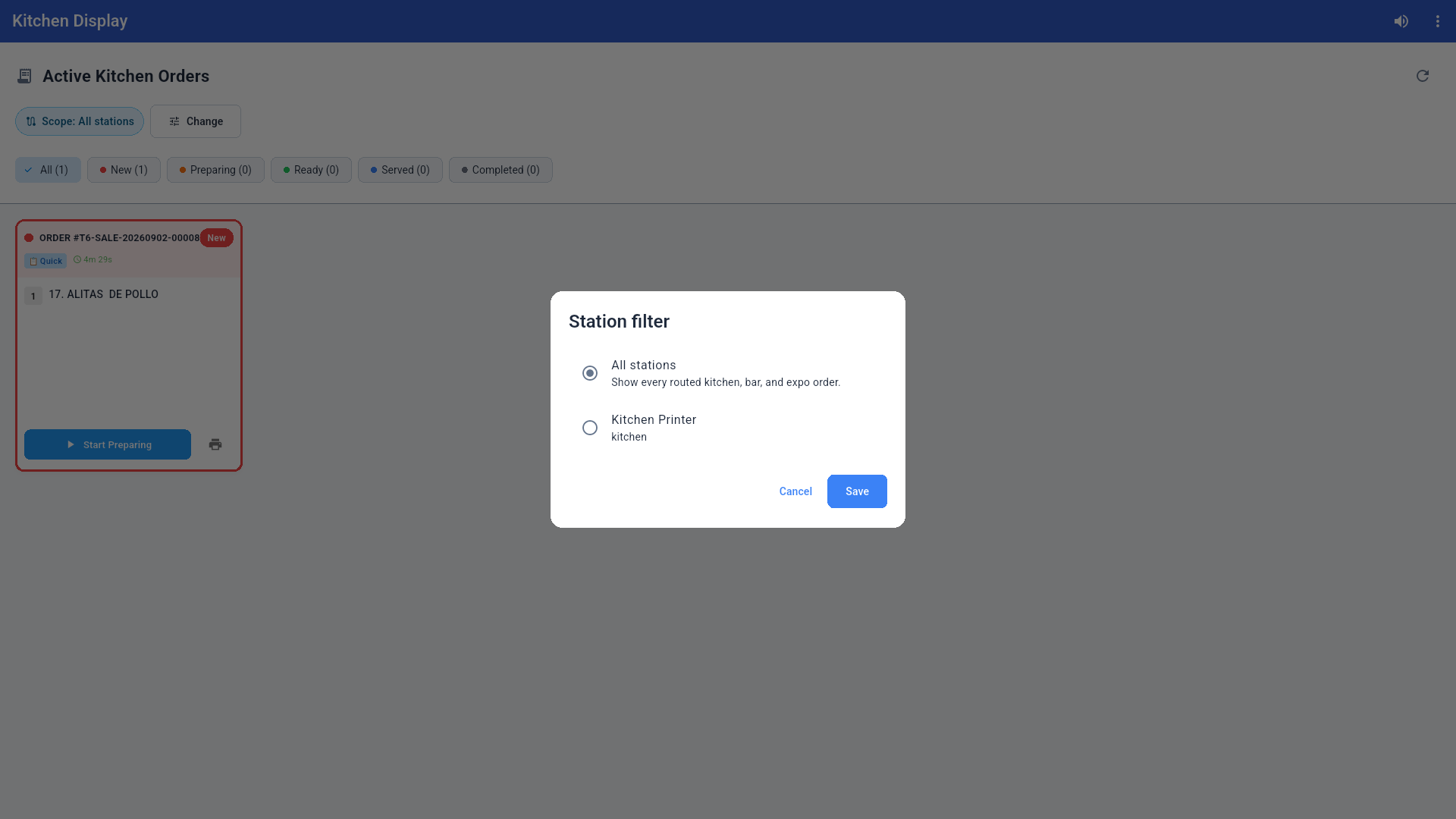
Change opens the station filter:
- All stations — shows every routed kitchen, bar and expo order.
- A specific station (e.g. Kitchen Printer) — only the orders routed to that print/prep station.
This lets you run several screens: one for the hot line, one for the bar, etc. Stations are defined in Settings → Hardware → Print Stations.
5. Station menu
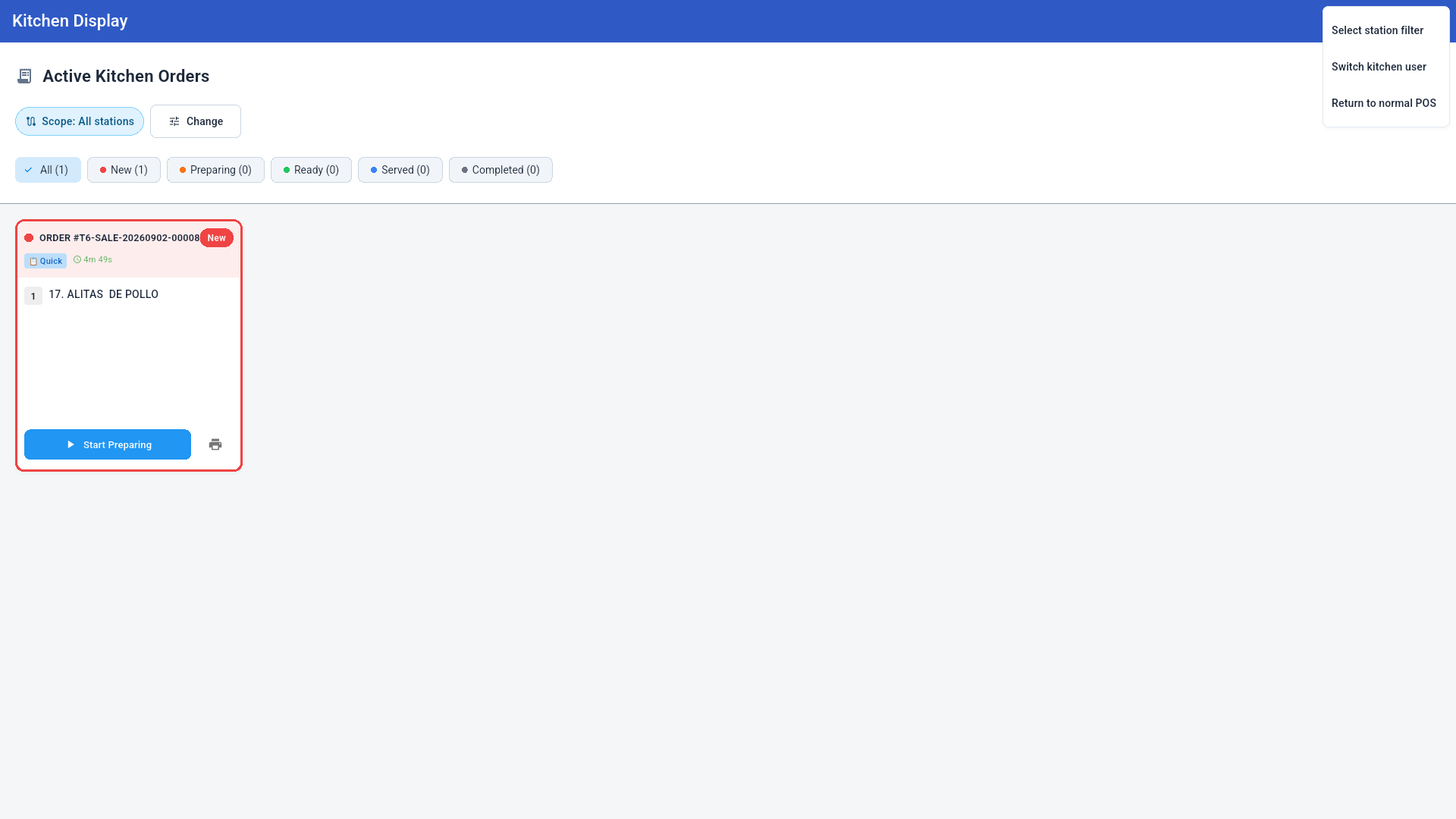
The ⋮ menu (top right) offers:
- Select station filter — same as Change.
- Switch kitchen user — changes the kitchen employee (asks for a PIN).
- Return to normal POS — leaves station mode back to the regular POS (permission required; the terminal profile remains KDS until a technician changes it in the portal).
6. Online and platform orders on the KDS
Orders from Uber Eats and the online store (Storefront) enter the screen just like counter orders, with two visible differences:
- The card carries the channel banner (Uber Eats / Online Order) and a PREPAID chip when already paid.
- Marking Ready does more than change the color: on Uber Eats it notifies the platform the order is ready for the courier, and on Storefront orders it sends the "ready for pickup" email to the customer with their pickup code.
If the platform cancels an accepted order, the order shows as cancelled on the KDS automatically (and the prepaid sale is voided by itself). The full delivery flow is in the Quick Service manual §10.
7. Order edits: what the kitchen receives
When a waiter edits an already-sent order (adds, removes, or changes quantities), the kitchen does not get the whole order again — only the change:
| Change | What the kitchen prints/sees |
|---|---|
| Items added | A "NEW ITEMS" ticket with only the additions |
| Items removed | A "CANCELLED" ticket with VOID per item |
| Quantity 2 → 3 | "NEW ITEMS" for the extra unit |
| Quantity 3 → 1 | "CANCELLED" for the 2 removed |
| No real change | Nothing prints |
If one edit both adds and removes, cancellations print first (to stop that prep as fast as possible), additions second. The card's printer icon reprints the full ticket with a REPRINT header.
Also, when a table with an active order is paid, its kitchen order is marked Completed automatically and the table is freed — no manual closing on the KDS.
8. Kitchen printing without internet
Printed tickets keep working even if the internet drops: the POS stores the print-station configuration locally (downloaded the first time it opens online) and printers are reached over the local network, not the internet. Requirements: printers on the same network, and the POS opened at least once with internet after configuring the stations. Configuration changes made in the portal apply in real time once the connection returns.
9. Synchronization
- Orders reach the station in real time from every terminal in the store (and through the cloud for the same store).
- Status changes made on the KDS reflect on the other terminals (Kitchen Display counter, Open Orders) and upload to the cloud.
- If the network drops, the station resyncs when it returns; the refresh button forces a reload.