GCR POS — Self-Order Kiosk
Guide to the self-order kiosk: a terminal the customer uses on their own to build the order and print a ticket. The customer takes the ticket to the register, the cashier scans it, the order loads exactly as the customer built it, and it goes to the kitchen when it is paid. Nobody keys the order in twice.
Phase 1 — pay at the counter. The kiosk takes no payments: it only prints the ticket. Paying by card on the kiosk itself comes in a later phase.
1. How it works
- The customer touches the kiosk screen, picks products (with their modifiers), and taps Finish order.
- The kiosk prints a ticket with a big order number, the items, the
total and a barcode + QR code (
KO-followed by 8 characters). - At the register the cashier scans the ticket: the order appears in the cart. The cashier charges it with any payment method.
- When it is paid, the order goes to the kitchen like any To-Go order (kitchen ticket and Kitchen Display).
Until the ticket is paid nothing is recorded: no sale, no kitchen ticket, no inventory movement. An order the customer never pays simply expires.
2. Turning it on (once)
1) Store switch — Merchant Portal → Settings → Register Operations → Self-Order Kiosk → Enable self-order kiosk, then Save kiosk settings. Off (the default), no terminal can be a kiosk and the registers treat a kiosk ticket like an unknown barcode.
With the switch on, the same card sets:
| Setting | What it does | Default |
|---|---|---|
| Ticket valid for (minutes) | An unpaid ticket older than this is refused at the register. 15 to 1440. | 240 |
| Reset after inactivity (seconds) | Without a touch the kiosk asks "Are you still there?" and, with no answer, clears the order and returns to the welcome screen. 30 to 600. | 90 |
| Ask the customer's name | Don't ask (only the order number prints), Optional (the customer may skip it) or Required (no ticket without a name). | Optional |
| Categories shown on the kiosk | None selected = every category. Select only the deli/kitchen ones to hide the rest of the store. | all |
2) Which device is the kiosk — Merchant Portal → Settings → Terminals → open the terminal → Terminal Profile → Self-Order Kiosk. The header of that terminal shows a Kiosk badge.
Changes to the card reach the kiosk within seconds and apply between customers (when the kiosk returns to the welcome screen): no need to sign in again.
3. Starting the kiosk
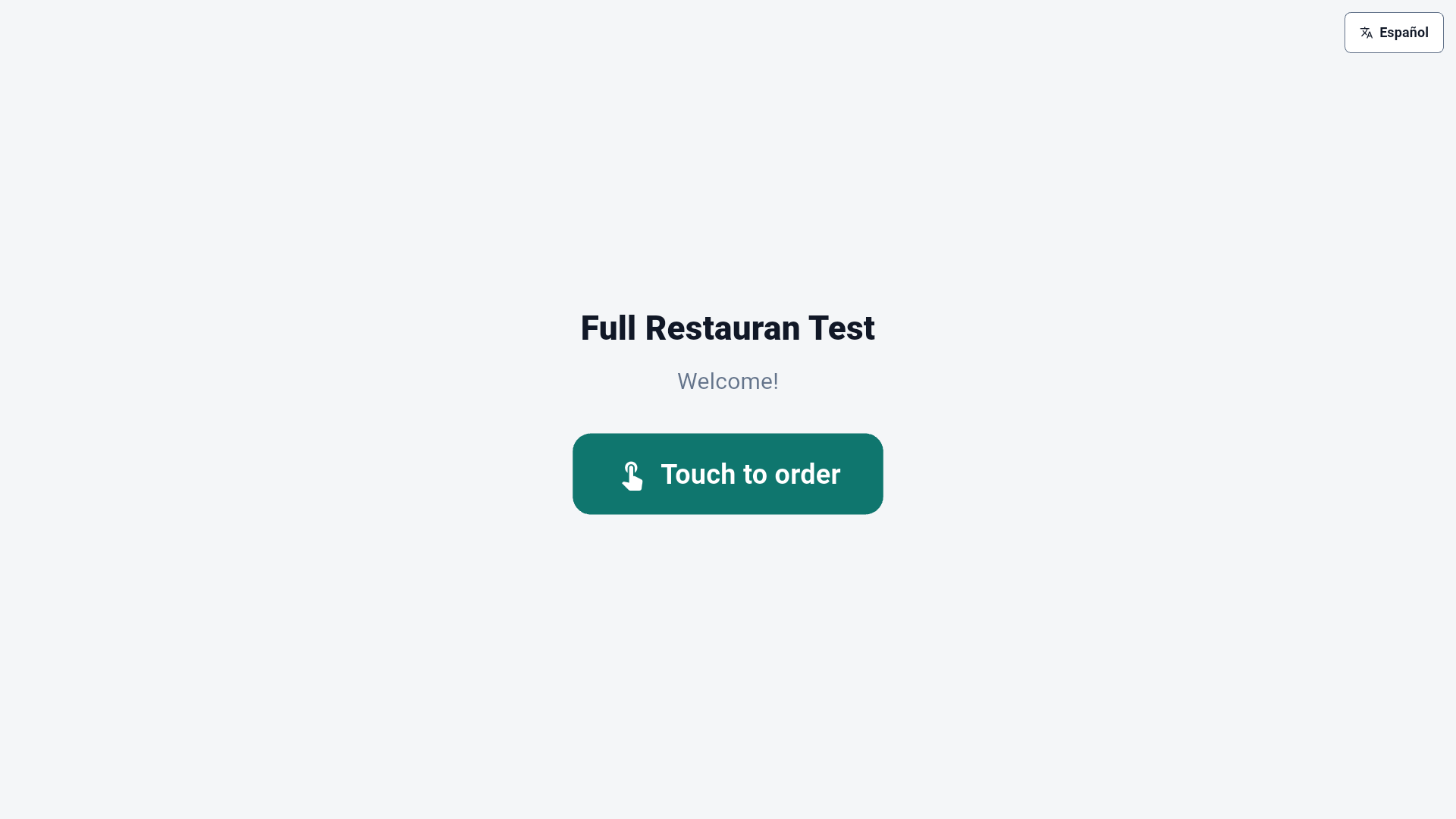
An employee enters their PIN on the device once; instead of the normal POS, the device opens the welcome screen ("Touch to order"). The kiosk records no sales, so it needs no open shift.
The ticket printer. The kiosk prints on the terminal's receipt printer (Settings → Hardware → Receipt Printer: USB, network or Bluetooth). With no printer configured the kiosk does not leave a ticket-less order behind: it tells the customer to ask at the register. To configure the printer on a kiosk use the staff menu (§8) → Printer & hardware.
4. What the customer does
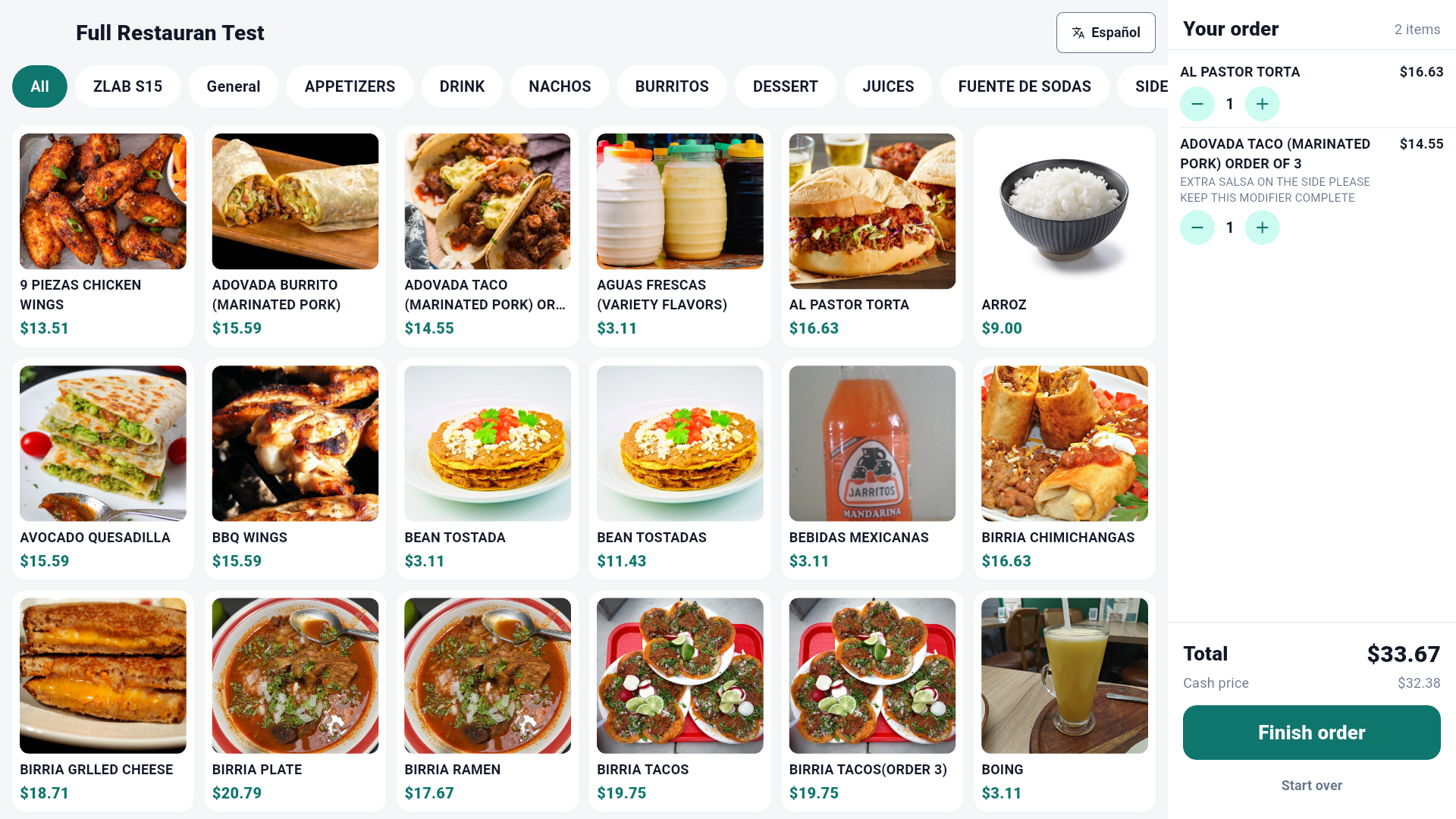
- Categories across the top; product tiles with photo and price. Tapping a product adds it; if it has modifiers the same options screen as the register opens.
- Your order (right): each line with − / + and the Total. With cash discount active it also shows the Cash price.
- Español / English button: the customer switches the kiosk language. It returns to English for the next customer.
- Start over clears the order (asks for confirmation).
- The kiosk does not show products that need the register: open-price items, items sold by weight, pack sizes, and $0.00 items (ingredients used as modifiers).
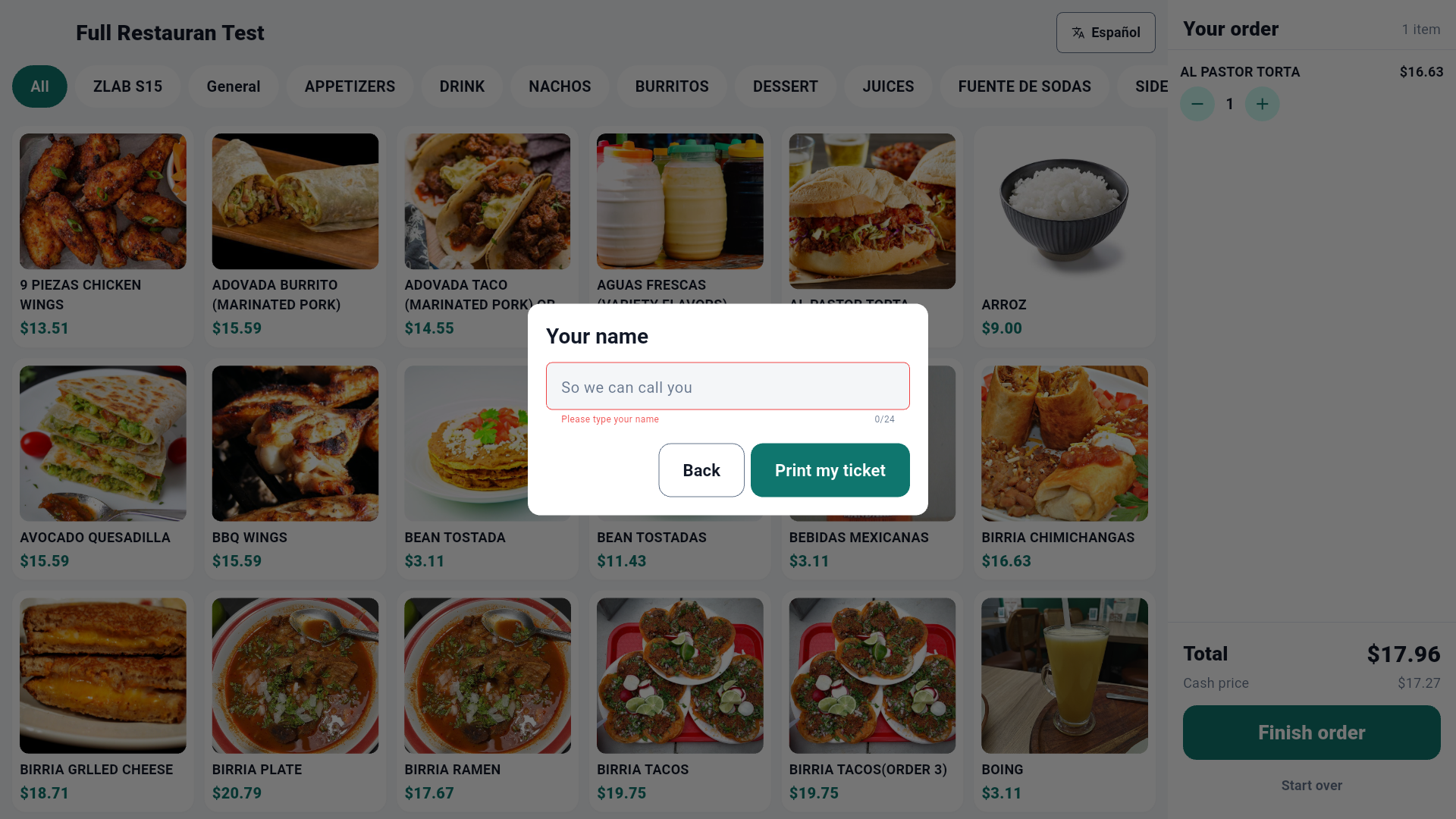
Finish order asks for the name according to the setting (§2): with Required the ticket does not print until something is typed ("Please type your name").
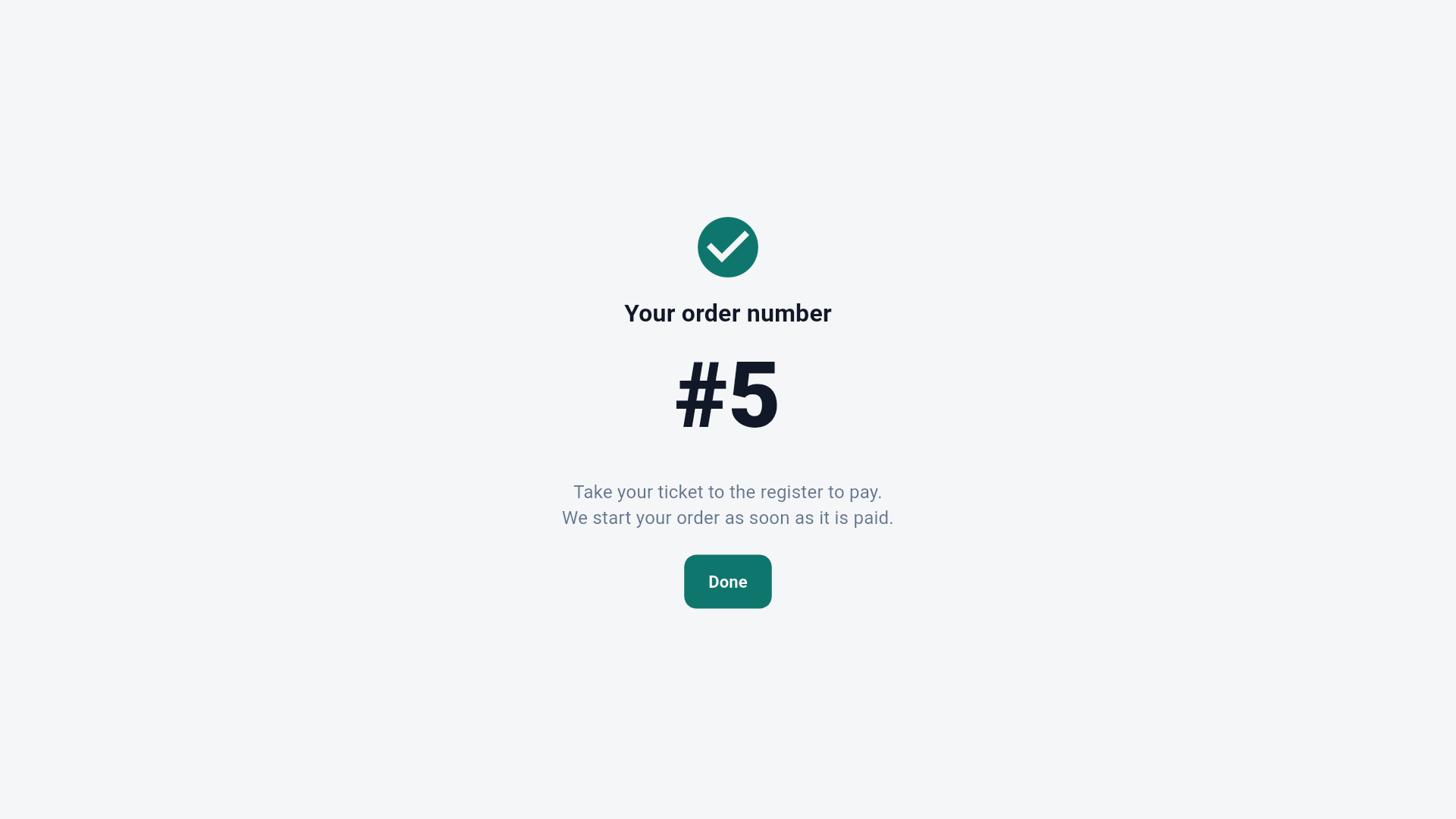
The kiosk prints the ticket and shows the order number in large type with the instruction to pay at the register. After 15 seconds (or Done) it returns to the welcome screen for the next customer.
5. The ticket
It prints: store name, ORDER #N and the name, "PAY AT THE REGISTER — This
is not a receipt", the lines with modifiers and price, TOTAL (and the
cash price if there is a cash discount), the barcode, the code in text
(KO-XXXXXXXX) and a QR, the date and Valid until.
- The number (#1, #2…) restarts every day and is what the counter calls out. Two kiosks in the same store may print the same number; the register identifies the order by the code, so charging is never confused.
- Any scanner reads the barcode; 2D scanners can also read the QR. If the scanner fails, the cashier can type the code in the search field.
6. At the register: charging the ticket
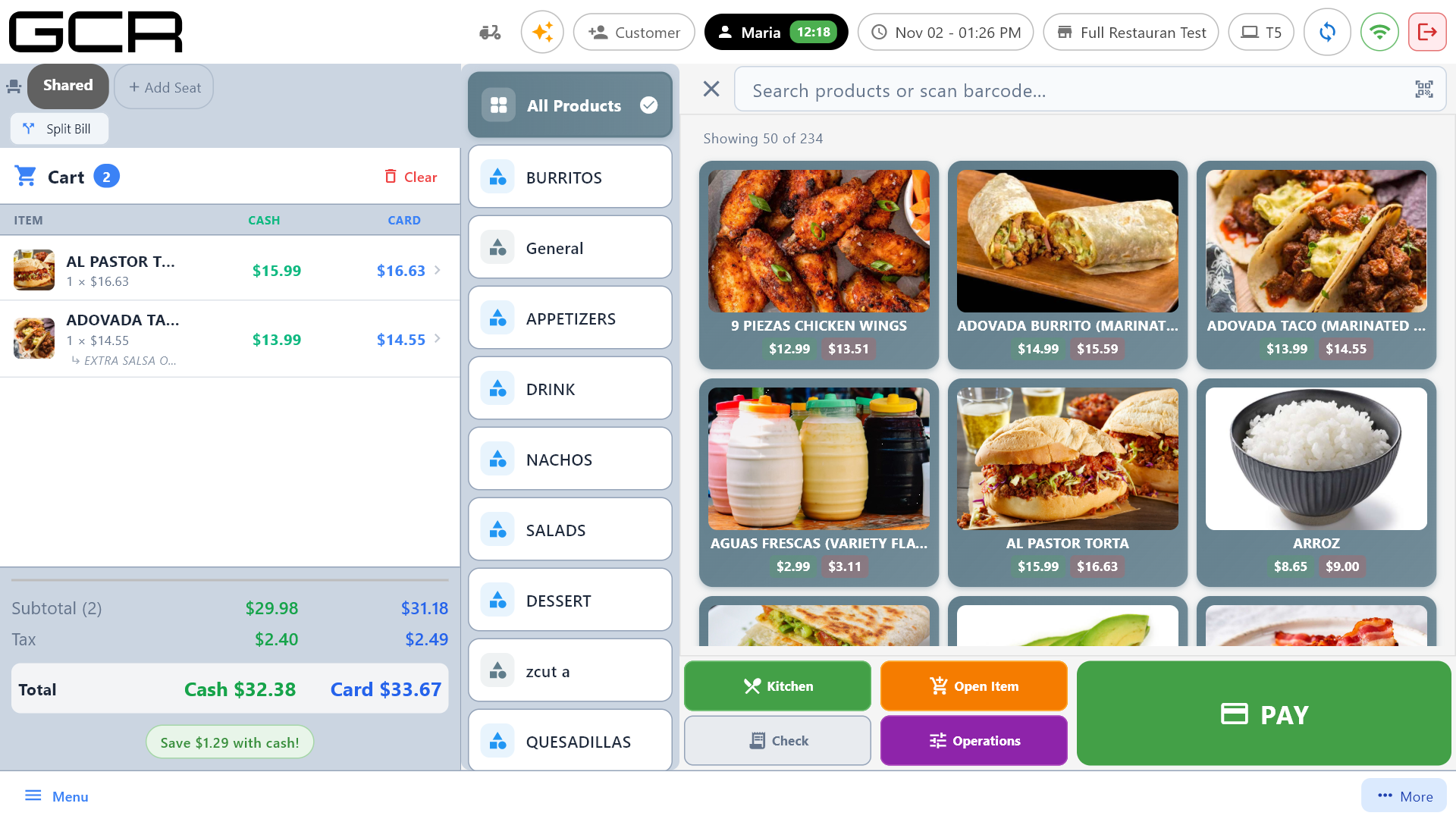
- Quick Service / Full Restaurant: open a To-Go order (it also works in Delivery and Dine-In) and scan the ticket. Retail / Supermarket: scan it on the normal sales screen.
- The order loads with its items, modifiers and prices. If the cart already had products, the register asks "Add to sale" — the kiosk order is added to what was there.
- Charge with any method (cash, card, split…), as always.
What the register says when it cannot load it:
| Message | Meaning | What to do |
|---|---|---|
| Kiosk orders go to the kitchen: open a To Go order and scan the ticket there. | It was scanned in a Quick Order, which does not send to the kitchen. The ticket is not used up. | Open a To-Go and scan again. |
| Kiosk ticket KO-… was not found. It may be paid already. | The ticket was already charged (or deleted). | Check Open Checks / recent sales; do not charge twice. |
| This kiosk ticket expired. Ask the customer to order again. | Older than Ticket valid for. | The customer orders again (or key the order in). |
| This kiosk ticket is already being charged on another register. | Two registers scanned the same ticket; the first one wins. | Leave it to the other register. |
The second scan of a ticket that was already paid is always refused: the same ticket cannot be charged twice.
7. The kitchen
Once paid, the order follows the To-Go flow: the sale is created with the kitchen pending, the kitchen ticket prints at its print station and it appears on the Kitchen Display. After charging, the register asks whether the order was already delivered (No, Pending while it is being prepared). Nothing reaches the kitchen while the ticket is unpaid.
In Retail / Supermarket mode the order reaches the kitchen only when the store turns on Kitchen in Retail / Supermarket (portal → Register Operations): then the deli items print at their station with FOR: Kiosk #N - name and show on the Kitchen Display (Retail manual §8). Off, the order is charged with no kitchen ticket.
8. Staff menu and leaving the kiosk
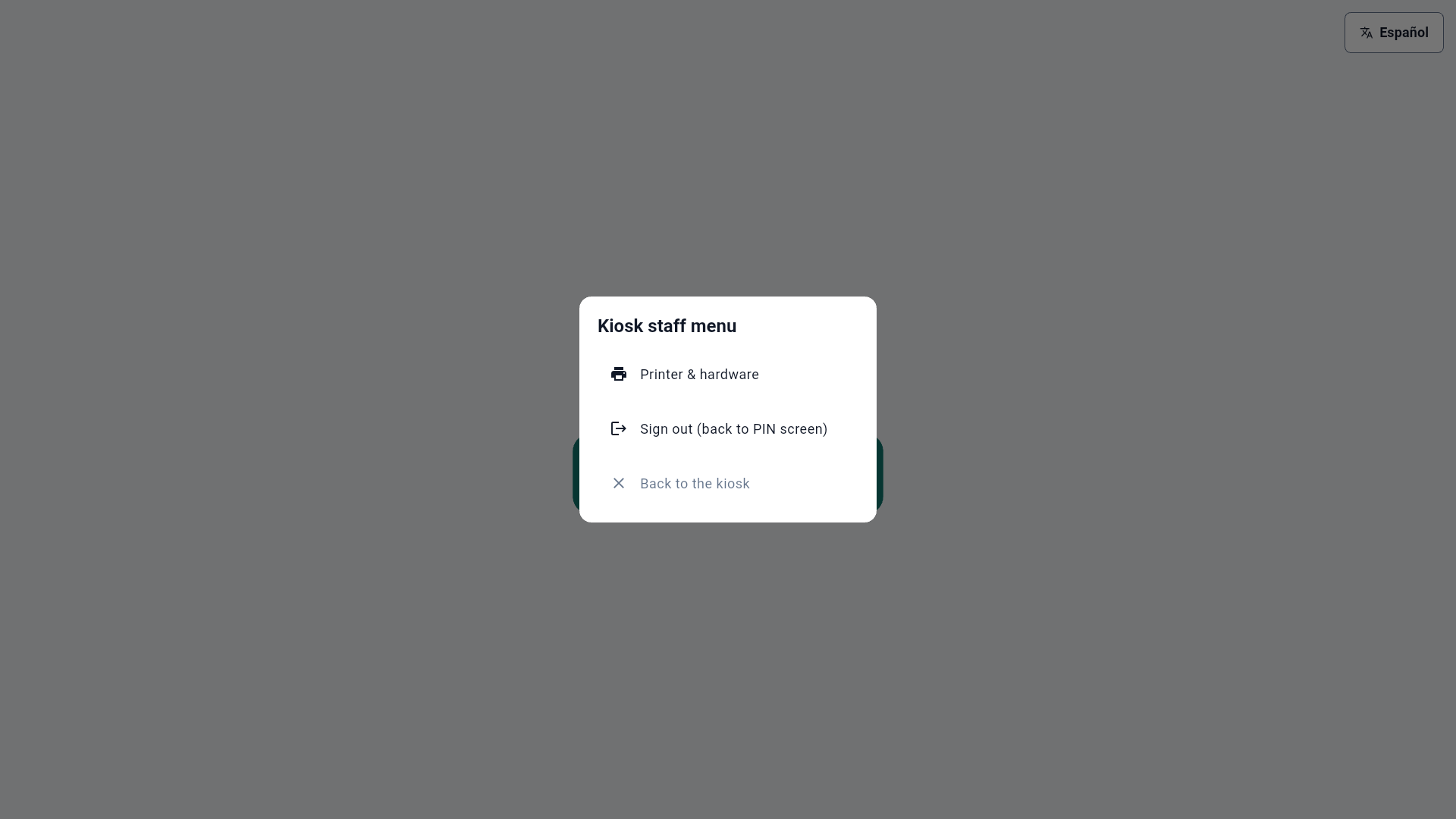
Press and hold the top-left corner of the kiosk (it is invisible). The POS always asks for a supervisor PIN with the Edit Settings permission, even if a manager started the kiosk. Then:
- Printer & hardware — the Hardware settings screen (receipt printer, scanner…). Editing requires the technician unlock, as on any terminal.
- Sign out (back to PIN screen).
- Back to the kiosk.
To turn the device back into a normal POS change its Terminal Profile to Standard Terminal in the portal.
9. Unpaid tickets and good practices
- Unpaid tickets expire after Ticket valid for; the kiosk itself deletes them in the background (every 10 minutes). The register's ordinary holds are never touched.
- Prices: the ticket shows the prices of the moment; the register charges with the current catalog.
- Without internet (stores without a local server): the kiosk may save the order but the register cannot find it until the connection returns. With a local server it works inside the store's network.
- The kiosk device must stay on its kiosk screen: a technician can lock the device (Android screen pinning / the Windows kiosk lockdown) so customers cannot leave the app.